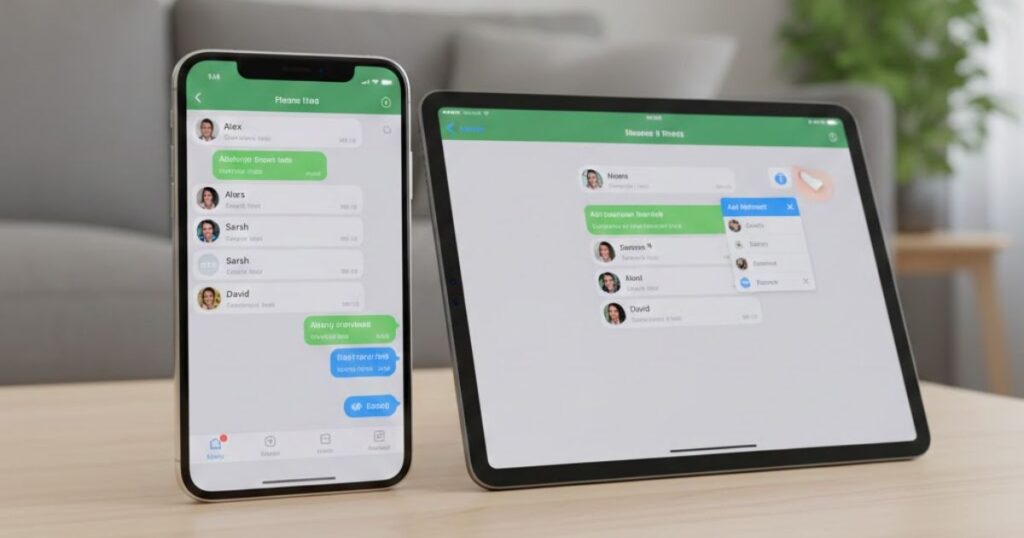
Sending messages to a group on your iPhone or iPad makes chatting with friends, family, or coworkers easy. You can share updates, photos, and ideas with everyone at the same time.
Sometimes, you may want to add someone to a group text to include them in the conversation. Other times, you might need to remove someone from a group text if they no longer need to be in the chat.
Knowing how to manage your group messages helps keep conversations organized. In this guide, we will explain step by step how to add and remove people in group text messages on your iPhone or iPad.
Learn how to add and remove people in group text messages on your iPhone or iPad.
- Easily manage your group chats: You can quickly add someone to a group text to include them in the conversation. This keeps everyone updated and connected without missing messages.
- Keep your group organized: If someone no longer needs to be in a chat, you can remove them from a group text. This makes your conversations clear and easy to follow.
How to add someone to a group text message

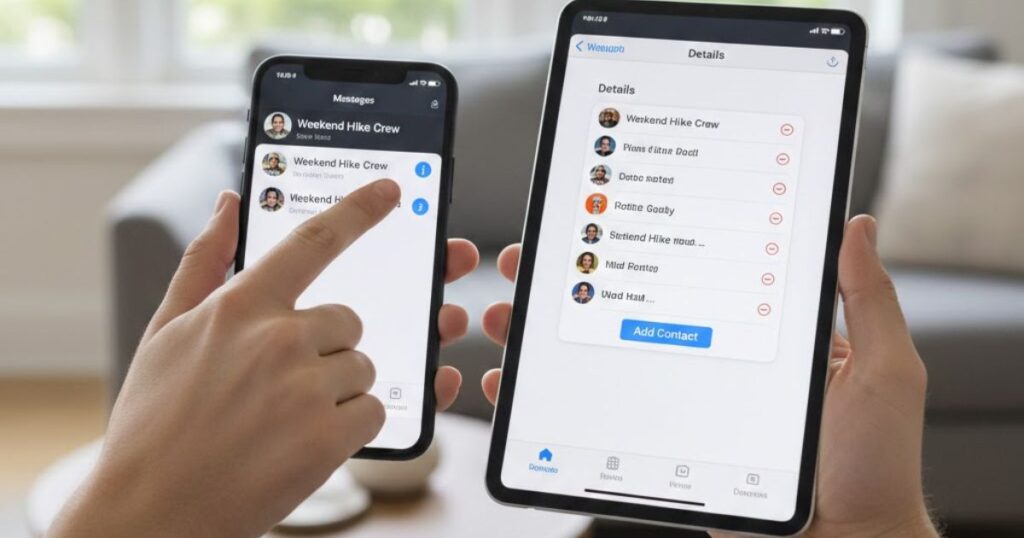
- Tap the group message you want to update, then open the group icons at the top of the screen.
- Next, tap the gray arrow beside the contacts to see more options.
- Then, select Add Contact and type the name of the person you want to include.
- Finally, tap Done to add them and update the group conversation instantly.
How to remove someone from a group text message
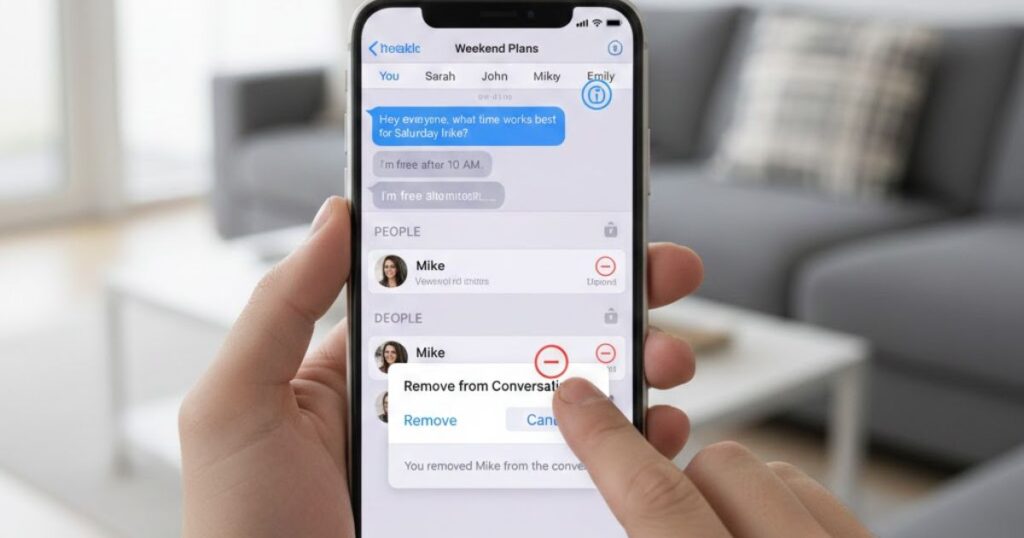
- Open the group message that has the contact you want to remove.
- Tap the group icons at the top of the thread to see all members.
- Next, tap the gray arrow and swipe left on the name of the person to remove.
- Finally, tap Remove and then Done to update the group instantly.
Removing someone from a group text message is easy and helps keep your conversations organized. You can quickly manage who stays in the chat without disrupting the discussion.
This way, only the necessary members remain in the conversation. It also makes following messages simpler and clearer for everyone.
If you can’t add or remove someone in a group message

- You can only remove someone from a group message if there are four or more people in the chat and everyone is using an Apple device. If the group is smaller or includes a non-Apple user, you won’t see the option to remove anyone.
- To add someone to a group message, they must be using an Apple device. If a contact uses a non-Apple device, you cannot add them to the existing group. Instead, you need to create a new group message, which will use SMS/MMS automatically.
- You cannot add someone to a group chat that only has one other person. Adding contacts works only in groups with three or more members. If you try to add someone in a smaller chat, the option will be unavailable, and you must start a new group message instead.
Conclusion
Managing group text messages on your iPhone or iPad is simple once you know the steps. You can easily add someone to a group text to include new members or remove someone from a group text to keep conversations organized.
Remember that all participants must be using Apple devices for these options to work, and group size rules apply. By following the steps carefully, you can maintain smooth and clear communication without confusion. Whether updating members or leaving unnecessary participants out, these tips help you control your group chats effectively.
Frequently asked questions
What is the minimum number of people needed to add someone to a group text?
You can only add someone if the group has three or more people, and all participants must be using Apple devices like iPhone or iPad.
How can I remove someone from a group text on my iPhone?
Open the group message, tap the group icons, swipe left on the person’s name, then tap Remove and Done to update the chat.
Can I add or remove someone if they use a non-Apple device?
No. You cannot add or remove someone using SMS/MMS. To include them, you must create a new group message that supports non-Apple devices.
How do I leave a group text without removing others?
You can mute notifications or leave the conversation. Open the group message, tap the icons, then choose Leave this Conversation or mute alerts.
Why can’t I remove someone from a small group chat?
Removal requires at least four members. If your group has fewer people, the option to remove someone will not appear in the Messages app.
Read More Articles: Msgsword