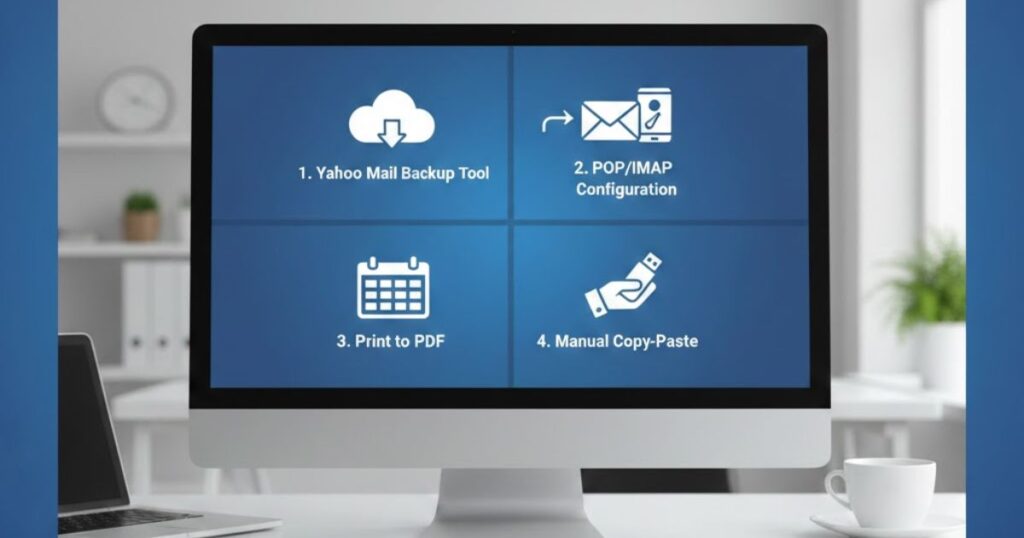
Yahoo Mail is one of the most popular email services in the world. Many users want to download Yahoo emails to their computer for backup, offline access, or security. This guide will show easy ways to save your emails safely.
You can download emails from Yahoo manually using built-in options or desktop email clients like Outlook. These methods let you save your important messages as PDF or PST files. Following these steps keeps your Yahoo Mail data organized and easy to access.
For faster and safer results, professional tools allow you to export Yahoo Mail in bulk. You can download Yahoo email from multiple accounts at once and store them on your computer, USB, or external hard drive without losing attachments or folders.
Overview: This guide explains how to download emails from Yahoo to your computer or USB. It covers manual methods, like printing and using Outlook, and professional tools to export Yahoo Mail, making it easy to download Yahoo emails securely.
Method 1: How to Download Emails from to USB Flash Drive Manually?

You can download Yahoo emails to a USB flash drive manually using simple steps. First, open your Yahoo Mail and select the email you want. Then, use the print option to how to download emails from Yahoo as PDF. Finally, save it directly to your USB flash drive, keeping your emails safe and accessible offline.
Method 2: How to Download Yahoo Emails to Computer / PC?
- Open Outlook: Go to File → Add Account and start connecting your Yahoo Mail to download emails.
- Manual Setup: Select Manual Setup → POP/IMAP and enter Yahoo server details and password.
- Adjust Settings: Go to More Settings → Outgoing Server and Advanced to set port numbers.
- Connect Account: Click Next → Finish to sync Yahoo Mail with Outlook.
- Export Emails: Go to File → Open & Export → Import/Export, choose Export to PST, and select folders.
- Save to PC: Pick a location, click Finish, and your Yahoo emails are downloaded and ready for backup.
Method 3: Save Yahoo Emails to USB Flash Drive by Connecting
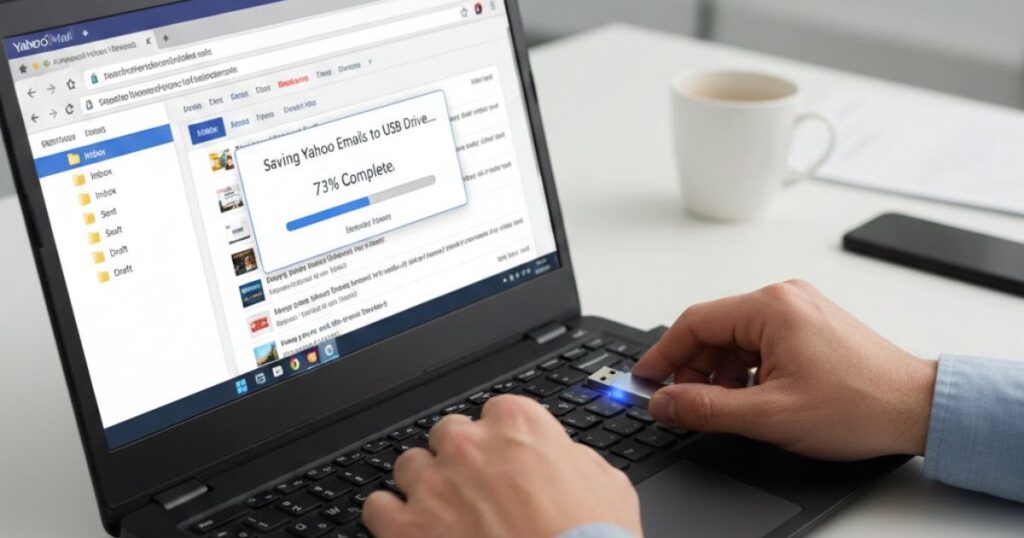
To download Yahoo emails to a USB flash drive, first connect your Yahoo Mail to a desktop client like Outlook. Then, export Yahoo Mail as a PST file. Finally, copy the saved file directly to your USB flash drive, keeping your emails safe, organized, and accessible offline whenever needed.
Step 1: Connect Yahoo Account
- Open Outlook: Launch Outlook on your computer to start connecting Yahoo Mail.
- Go to File: Click on File → Add Account to add your Yahoo account.
- Choose Manual Setup: Select Manual Setup or Additional Server to configure settings manually.
- Select Account Type: Pick POP or IMAP and click Next to continue.
- Enter Email Details: Type your Yahoo email address and password carefully.
- Incoming Server: Enter Yahoo’s incoming server details for proper syncing.
- Outgoing Server: Provide Yahoo’s outgoing server settings to send emails smoothly.
- More Settings: Click More Settings and enable My outgoing server requires authentication.
- Advanced Settings: Go to Advanced and set the correct port numbers, then click Next → Finish.
After connecting your Yahoo account, Outlook will sync your emails securely. This step ensures you can download Yahoo emails and manage them efficiently on your computer or USB drive.
Step 2: Export Yahoo Emails
- Restart Outlook: Open Outlook after connecting your Yahoo account to ensure all emails are loaded.
- Go to File: Click File → Open & Export → Import/Export to start the export process.
- Choose Export Option: Select Export to a File and click Next.
- Select File Type: Pick Outlook Data File (.pst) for safe storage of emails.
- Choose Folders: Select Yahoo Mail folders you want to save, including Inbox, Sent, and important labels.
- Set Destination: Browse and select the location on your computer to save the PST file.
- Finish Export: Click Finish to start downloading Yahoo emails to your PC.
Once the export completes, your Yahoo emails are safely saved as a PST file. You can now access them offline, transfer to a USB, or use them for backup easily.
Method 4: Download Emails from Yahoo Locally
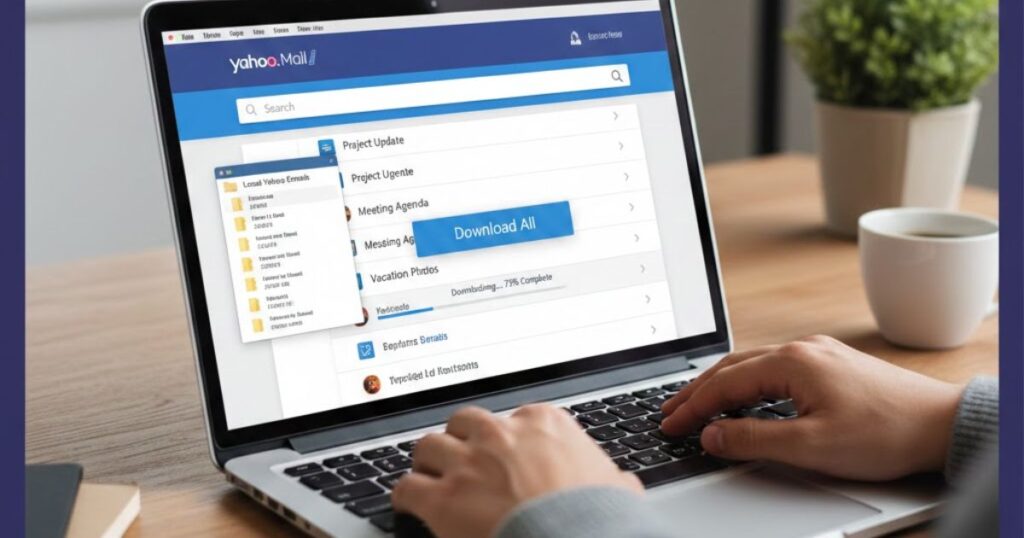
- Sign in to Yahoo Mail: Open your Yahoo account and go to your inbox.
- Open Email: Click on the email you want to save for local access.
- Copy Content: Highlight the email content and copy it using Ctrl + C (Windows) or Cmd + C (Mac).
- Save Locally: Open Notepad or Word, paste the content, and save the file on your computer for offline access.
Drawbacks of Manual Methods
- Time-consuming: You have to download Yahoo emails one by one, which takes a lot of time.
- Risk of errors: Manual copying or using PST files may cause data loss or corruption.
- Limited features: Tools like Outlook are paid and may not support all Yahoo Mail functions.
- Repetitive work: Copying emails manually requires repeating the process for every email, which is inconvenient.
Advanced Tool to Easily Download Emails from Yahoo to Computer

To download Yahoo emails quickly and safely, you can use the RecoveryTools Yahoo Mail Backup Tool. This professional solution lets you export Yahoo Mail in multiple formats like PST, PDF, or EML. It keeps all folders, attachments, and email properties intact, making it easier to manage and save emails on your computer or USB drive.
How to Save Yahoo Emails to USB Flash Drive?
- Open the Yahoo Mail downloader software on your computer.
- Enter your Yahoo Mail credentials to connect your account securely.
- Choose the email folders or subfolders you want to save.
- Select a format like PST, PDF, or EML for saving emails.
- Browse and select your connected USB flash drive as the destination.
- Click Next or Backup to download Yahoo emails directly to your USB safely.
Complete Steps to Download Yahoo Emails to Computer/PC

You can download Yahoo emails to your computer easily using professional tools. First, launch the software and log in to your Yahoo account. Then, select folders, choose a file format, and apply filters if needed. Finally, save your emails securely on your computer or USB drive.
- Install the Tool: Download and open the Yahoo Mail downloader software on your computer.
- Log in: Enter your Yahoo email address and password to connect your account.
- Enable Batch Mode (Optional): Use this feature to download Yahoo emails from multiple accounts at once.
- Select Folders: Pick the required email folders and subfolders for backup.
- Choose File Format: Select formats like PST, PDF, EML, or MSG to save your emails.
- Apply Filters (Optional): Use date range, sender, or subject filters for selective backup.
- Set Destination: Browse and choose a location on your computer or USB flash drive.
- Start Backup: Click Backup or Next to download Yahoo emails securely to your device.
How to Transfer Yahoo Email to USB Flash Drive? With Tool
You can easily download Yahoo emails to a USB flash drive using professional software. First, log in to your Yahoo account through the tool. Then, select folders, choose a file format, and set the USB as the destination. Finally, start the backup to save emails securely.
- Open the Software: Launch the Yahoo Mail downloader tool on your computer.
- Log in to Yahoo: Enter your Yahoo Mail credentials to connect your account safely.
- Select Folders: Choose the email folders or subfolders you want to export Yahoo Mail from.
- Pick File Format: Select PST, PDF, EML, or other formats for saving emails.
- Choose USB Drive: Browse and set your connected USB flash drive as the destination.
- Start Backup: Click Backup or Next to transfer Yahoo emails to your USB securely.
How to Save Yahoo Emails to External Hard Drive?
You can download Yahoo emails to an external hard drive easily using professional software. First, connect your hard drive and log in to your Yahoo account through the tool. Then, select folders, choose a file format, and set the external drive as the destination to save emails securely.
What’s the Bonus? The bonus of using professional software is that you can download Yahoo emails safely and quickly. You can try the demo version for free, which allows you to export Yahoo Mail and save the first 25 emails. This helps you test the tool before full backup on your computer or USB.
Why Advanced Solution Over Manual Method?
- Faster Backup: The tool lets you download Yahoo emails in bulk, saving time compared to manual methods.
- Multiple Formats: You can export Yahoo Mail in PST, PDF, EML, MSG, and other formats easily.
- Preserve Data: It keeps all folders, attachments, and email properties intact without risk of corruption.
- Selective Backup: Apply filters like Date Range, From, To, or Subject to save only needed emails.
- Batch Mode: Backup emails from multiple Yahoo accounts at once, which manual methods cannot do.
- Safe and User-Friendly: The software offers a simple interface and secure download, making it easier than manually saving each email.
FAQs: Download Yahoo Emails
Q 1: Why are emails not being downloaded?
Emails may not download due to unstable internet, server issues, or anti-spam filters. Check your connection, retry, or use professional tools for secure email downloads.
Q 2: Can I bulk download email from multiple Yahoo accounts at once?
Yes, using professional software with batch mode, you can download Yahoo emails from multiple accounts simultaneously, saving time and keeping all folders and attachments intact.
Q 3: Does Yahoo Mail have a storage drive?
Yahoo Mail offers 20GB of free storage for emails, attachments, contacts, calendars, and notes, allowing users to manage and export Yahoo Mail efficiently.
Q 4: Is Yahoo better than Gmail?
Both Yahoo and Gmail are popular email services. Yahoo provides customization options, large storage, and security features, making it preferred by many users.
Q 5: Does anyone still use Yahoo email?
Yes, millions of users still rely on Yahoo Mail for personal and professional communication, email management, and secure storage of attachments and important messages.
The Closing Thoughts
In conclusion, learning how to download emails from Yahoo is essential for backup, offline access, and security. You can use manual methods like printing emails as PDF, connecting Yahoo Mail to Outlook, or copying emails locally. However, professional tools make it easier to export Yahoo Mail in multiple formats, preserve attachments, maintain folder structure, and even download emails in bulk.
These solutions allow saving emails to your computer, USB flash drive, or external hard drive securely. Overall, whether for personal or professional purposes, using the right method ensures your Yahoo emails are safe, organized, and easily accessible anytime.
Read More Articles: Msgsword