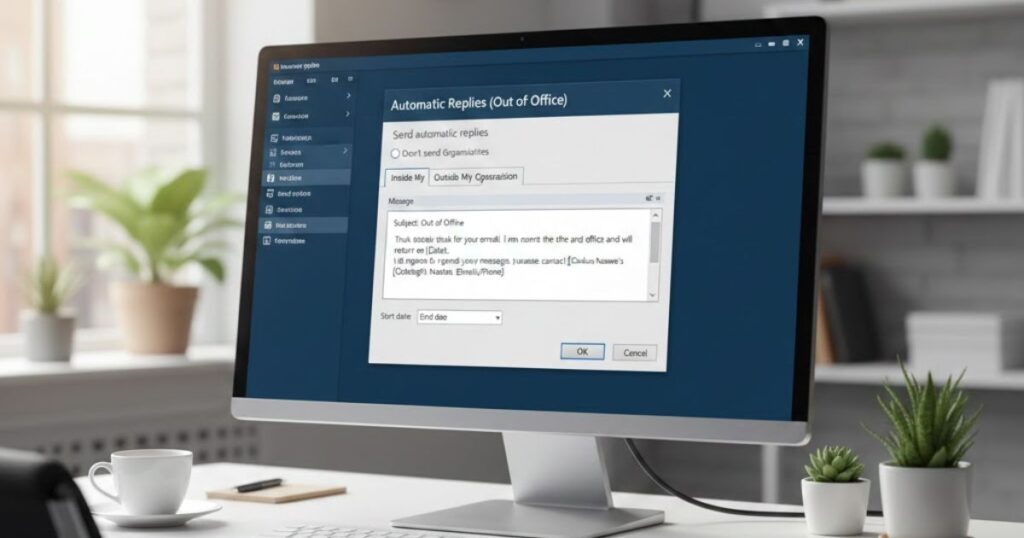
Creating an out of office reply in outlook helps people know you are away and cannot reply right away. When you set an outlook out of office message, your contacts get quick updates, and you can manage your time without stress.
Using an outlook away message is helpful when you are on vacation, in a meeting, or offline for personal reasons. This guide clearly explains how to set a message in outlook so you can stay organized even when you’re not available.
An away message outlook makes communication easier because it informs others automatically. Whether you use Outlook on the web, computer, or phone, setting up an automatic reply is simple. These steps will help you create a helpful and professional message quickly.
Via the web (outlook.office.com):
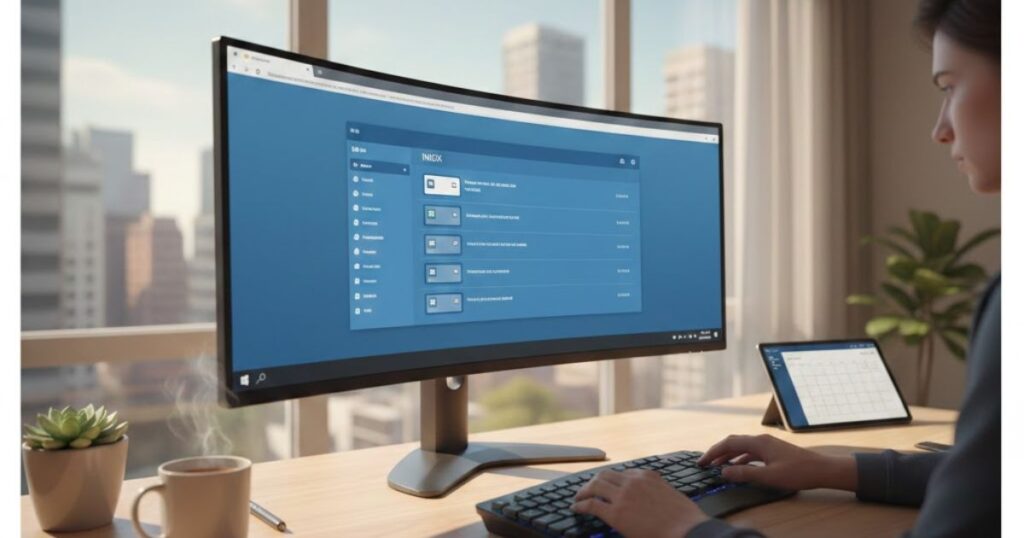
1. Open outlook.office.com and sign in to your account. Once you are logged in, Outlook takes you to your inbox where you can begin setting your outlook out of office message.
2. Click the Settings gear icon at the top-right corner. This opens a quick settings panel that helps you find important options faster.
3. Select View all Outlook settings at the bottom of the panel. This button takes you to the full settings page where you can easily manage your outlook away message.
4. Choose Mail and then click Automatic replies. Outlook displays all options needed to create a clear and helpful away message outlook.
5. Turn on the Automatic replies toggle. As soon as you enable it, Outlook starts preparing to send your message while you’re away.
(Optional) Set a start and end time for your reply. If you add a time range, Outlook will activate and stop your message automatically, making it easier to control how to set away message in outlook without forgetting to turn it off.
6. Select extra options if needed. You can block your calendar, decline new meeting invites, or cancel meetings during this period to stay fully offline and stress-free.
7. Type your automatic reply message in the text box. Use simple words to explain when you will return. Add a friendly tone so your out of office message outlook sounds professional and human.
(Optional) Allow replies to people outside your organization. If you want clients or partners to see your outlook out of office message, check this box and write a different message if required.
8. Click Save to confirm your settings. Your outlook away message is now active, and Outlook will send it automatically until the selected time ends or until you turn it off.
In the Outlook application:
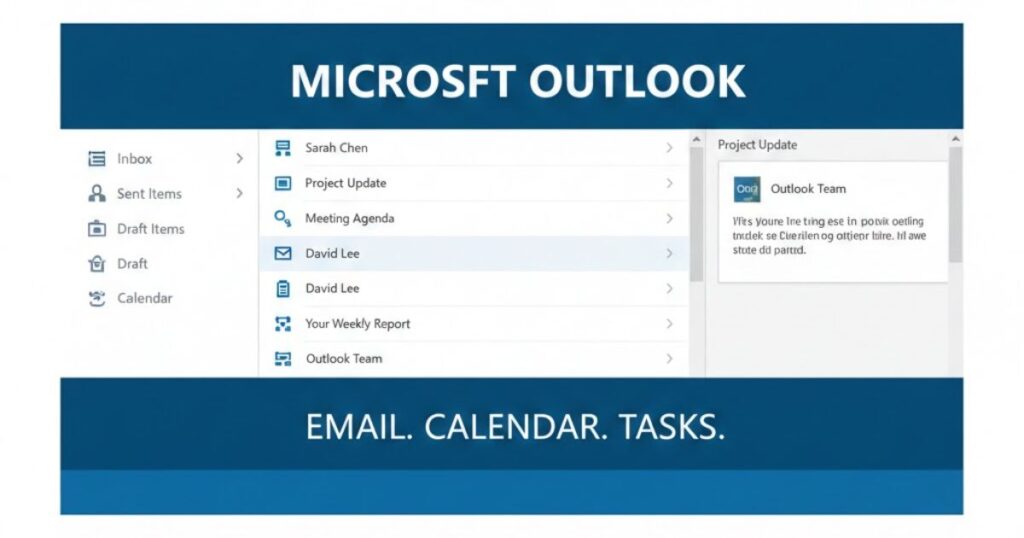
1. Open the Outlook application on your computer. Once it loads, you are ready to set your outlook out of the office message quickly and without confusion.
2. Click the File tab at the top-left corner. This opens the main account menu where you can manage your out of office message outlook settings easily.
3. Select Automatic Replies from the options. Outlook will show a new window designed for creating and controlling your away message outlook.
4. Choose Send automatic replies. By turning this on, Outlook will instantly prepare to send your reply whenever someone emails you.
(Optional) Set a start and end date for your reply. Adding a time frame helps you control how to set a message in outlook without remembering to switch it off later.
5. Type your message in the space provided. Keep it clear and friendly so your outlook away message sounds professional and helpful to anyone who emails you.
6. Open the Outside My Organization tab if needed. Use this when you want clients, customers, or partners to receive a different outlook out of office message.
7. Click OK to save your automatic reply. Your out of office message outlook is now active, and Outlook will send it automatically until the end time or until you turn it off.
In the Outlook app on your phone:
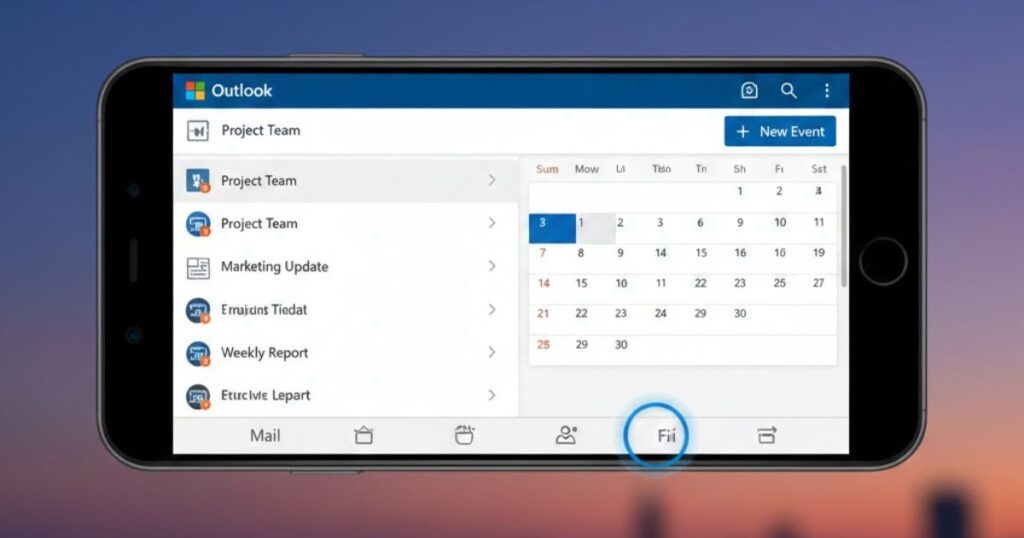
1. Open the Outlook app on your phone. Once the app loads, you can quickly set your outlook out of the office message right from your mobile.
2. Tap the Settings gear icon in the top-right corner. This takes you to your account controls where you can manage your out of office message outlook.
3. Select the email account where you want the reply. Outlook will show all settings for that account so you can set your away message outlook smoothly.
4. Tap Automatic Replies. This option opens a simple screen made for creating and controlling your outlook away message.
5. Toggle Automatic Replies on. As soon as you turn it on, Outlook prepares to send your message to anyone who emails you.
(Optional) Choose “Reply during a time period” and add a start and end time. This makes setting a message in outlook even easier because your phone will turn it off automatically.
6. Type your automatic reply message in the text box. Keep it warm, clear, and helpful so your outlook out of office message sounds friendly and professional.
7. Tap the checkmark at the top to save your settings. Your away message outlook is now active, and Outlook will send it automatically until the time range ends or until you switch it off.
Conclusion
Setting an out of office message outlook is an easy way to keep your contacts informed when you are away. Whether you use Outlook on the web, desktop, or mobile, each method lets you create a friendly and clear outlook out of office message within minutes.
These steps help you stay organized, reduce stress, and maintain smooth communication even when you cannot reply. By using an outlook away message, your emails are handled professionally until you return. Now that you know how to set away message in outlook, you can turn it on anytime and manage your time with confidence.
FAQS
How do I set an out of office message in Outlook?
You can set an out of office message outlook through the web, desktop app, or phone by turning on Automatic Replies and adding your custom message.
Can I set a time range for my Outlook away message?
Yes, Outlook allows you to add start and end times so your outlook away message turns on and off automatically without you remembering.
Will Outlook send automatic replies to people outside my organization?
Yes, you can enable replies for external contacts and even write a separate outlook out of office message for people outside your company.
Can I customize my away message in Outlook?
Absolutely. You can format text, change tone, and personalize your away message outlook so it sounds friendly, clear, and professional.
Is there a quick way to set an away message on my phone?
Yes, the Outlook mobile app makes it easy to set a message in outlook by letting you enable Automatic Replies directly from your account settings.
Read More Articles: Msgsword