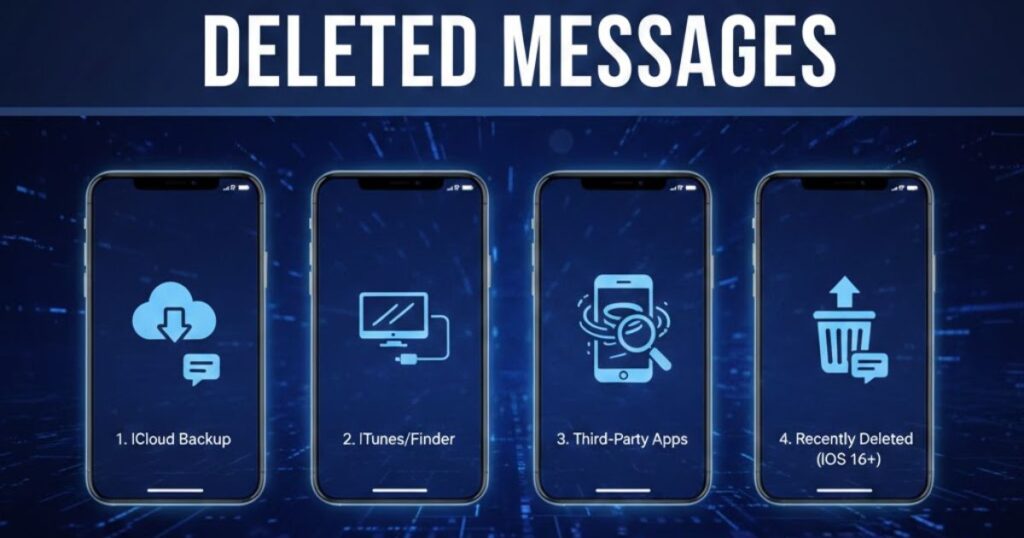
Accidentally losing texts can be stressful, especially when you need them later. This guide explains how to find deleted messages on iPhone using easy steps. You’ll learn simple ways to check your backups and retrieve deleted text messages iPhone users often recover.
Many people think deleted messages on iPhone are gone forever, but that’s not always true. Your iPhone saves copies in different places, and you can recover them quickly. This article shows safe methods anyone can follow without technical skills or special tools.
Whether you deleted a message by mistake or lost an important chat, you still have options. We’ll teach you how to find deleted messages on iPhone and guide you through the best ways to retrieve deleted text messages iPhone devices can recover.
Method 1: Recover Messages from the Recently Deleted Folder
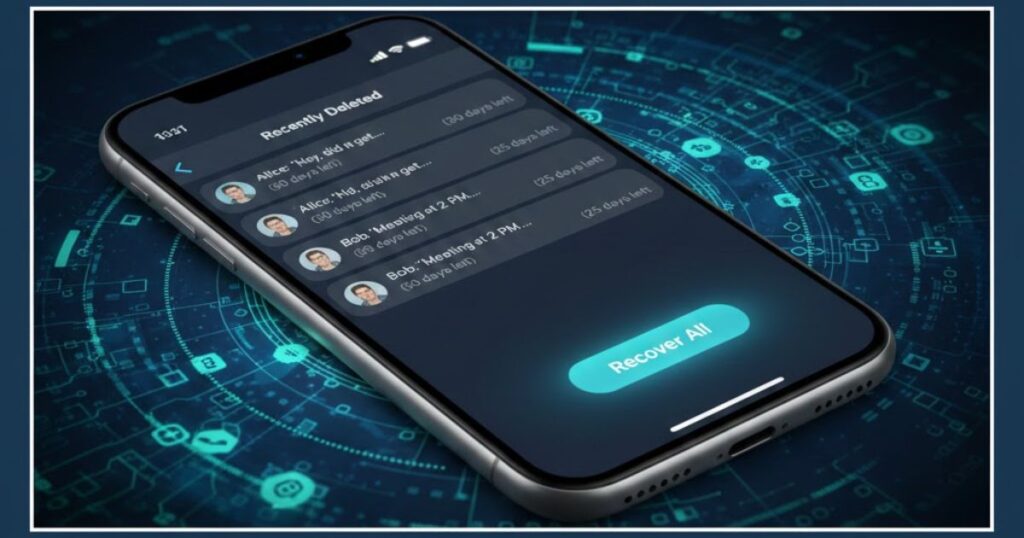
The Recently Deleted folder is the easiest place to check when you want to see deleted messages on iPhone. It keeps removed texts for 30 days, giving you a quick way to retrieve deleted text messages iPhone users often lose by mistake. This method helps you understand how to find deleted messages on iPhone without using backups or tools.
How to Retrieve Deleted Messages:
- Tap Edit or Filters in the Messages app to access the Recently Deleted folder.
- Browse the list and select the chats you want to restore.
- Tap Recover to bring back your deleted messages.
- Confirm the recovery to move them back into the main inbox.
- Check your conversations again to ensure all deleted messages on iPhone were restored successfully.
Important: Messages that have been removed for more than 30 days are erased for good, and this method will no longer bring them back. Once they pass this time limit, recovery through the Recently Deleted folder is not possible.
Method 2: Restore Messages Using iCloud Backup

If you regularly back up your iPhone, you can use iCloud to retrieve deleted text messages iPhone users often lose. This method helps when the deleted messages on iPhone are not in the Recently Deleted folder. It’s a reliable way to learn how to find deleted messages on iPhone by restoring an older backup.
Steps to Restore Messages from iCloud:
1. Check Backup Availability:
- Open Settings and go to your Apple ID, then tap iCloud.
- Select Manage Storage and open Backups.
- Look at the latest backup date to confirm it’s from before the messages were deleted.
- Make sure the backup includes Messages before moving forward.
2. Restore Your iPhone:
- Go to Settings > General > Transfer or Reset iPhone.
- Tap Erase All Content and Settings to start fresh.
- During setup, choose Restore from iCloud Backup.
- Sign in with your Apple ID and select the backup you checked earlier.
Warning: Restoring from iCloud replaces everything on your device. Back up your current data first so you don’t lose new files while trying to retrieve deleted text messages iPhone users need.
Method 3: Restore Messages Using a Mac or PC Backup

If you saved a backup on your computer, you can use Finder or iTunes to retrieve deleted text messages iPhone users often lose. This method is helpful when the deleted messages on iPhone are not in iCloud. It’s another simple way to learn how to find deleted messages on iPhone using older device backups.
How to Recover Using Finder or iTunes:
1. Connect Your iPhone to a Computer:
- Use a USB cable: Plug your iPhone into your Mac or Windows PC.
- Open the right tool: Launch Finder on Mac or iTunes on Windows.
- Select your device: Choose your iPhone from the left sidebar or top menu.
2. Restore the Backup:
- Find the backup option: Click Restore Backup in Finder or iTunes.
- Pick the correct backup: Choose one created before the messages were deleted.
- Start the restore: Confirm and let your iPhone restart with the recovered messages.
Tip: Always check the backup date before restoring. This ensures the older backup actually contains the deleted messages on iPhone you want to recover.
Method 4: Contact Your Network Provider

If other methods fail, you can reach out to your phone carrier to try recovering old SMS messages. This option helps when you cannot retrieve deleted text messages iPhone backups don’t contain. While carriers can access limited SMS records, they cannot recover iMessages or fully restore deleted messages on iPhone.
What to Do:
- Call your carrier’s customer support and request SMS record assistance.
- Provide your phone number, account details, and the dates of the lost messages.
- Verify your identity by answering security questions.
- Ask if they can share any available SMS records linked to your account.
Note: Carriers usually store SMS records for a short time and never save iMessages. This method may work only for standard texts and depends entirely on provider policies.
Carriers can sometimes help when you don’t know how to find deleted messages on iPhone through device methods. Their systems may keep limited SMS history, but availability varies by region and company. Always check if they offer message retrieval services.
Although this option isn’t guaranteed, it’s worth trying when backups fail and you still need important chats. Providers may give timestamps or logs that help confirm activity, but they cannot fully restore and retrieve deleted text messages iPhone users often expect.
Are Third-Party Apps a Viable Option?

Some third-party apps promise to help you retrieve deleted text messages iPhone tools can’t recover, but they often come with risks. Many require deep device access, and not all are trustworthy. Instead, use them carefully and always check reviews before downloading.
These apps may help when you can’t find deleted messages on iPhone through backups or the Recently Deleted folder. However, they might not work for every case. Because of privacy and security concerns, it’s safer to rely on Apple’s built-in methods first when learning how to find deleted messages on iPhone.
Final Thoughts
Accidentally deleting messages on your iPhone doesn’t have to be stressful. By following these methods, you can retrieve deleted text messages iPhone users often lose, whether through the Recently Deleted folder, iCloud, Mac or PC backups, or even contacting your carrier. While third-party apps exist, Apple’s built-in tools are safer and more reliable.
Always make regular backups to avoid permanent loss of deleted messages on iPhone. With these steps, you’ll know how to find deleted messages on iPhone quickly and confidently, keeping your important conversations safe and accessible whenever you need them.
FAQS
Can I recover deleted messages on my iPhone without a backup?
Yes, you can use the Recently Deleted folder within 30 days, but older messages require iCloud or computer backups for recovery.
How do I retrieve deleted text messages iPhone users have lost?
You can restore them using iCloud backups, Mac/PC backups via Finder or iTunes, or check with your carrier for available SMS records.
Are third-party apps safe to recover deleted messages on iPhone?
Some apps work, but many require advanced access and may compromise security. Built-in Apple recovery methods are safer and more reliable.
How long does an iPhone keep deleted messages in the Recently Deleted folder?
Messages stay in the Recently Deleted folder for 30 days. After this, they are permanently removed and cannot be recovered using this method.
Can carriers recover iMessages for me?
No, carriers only store SMS messages for a limited time. iMessages are end-to-end encrypted, so they cannot be recovered from provider records.
Read More Articles: Msgsword