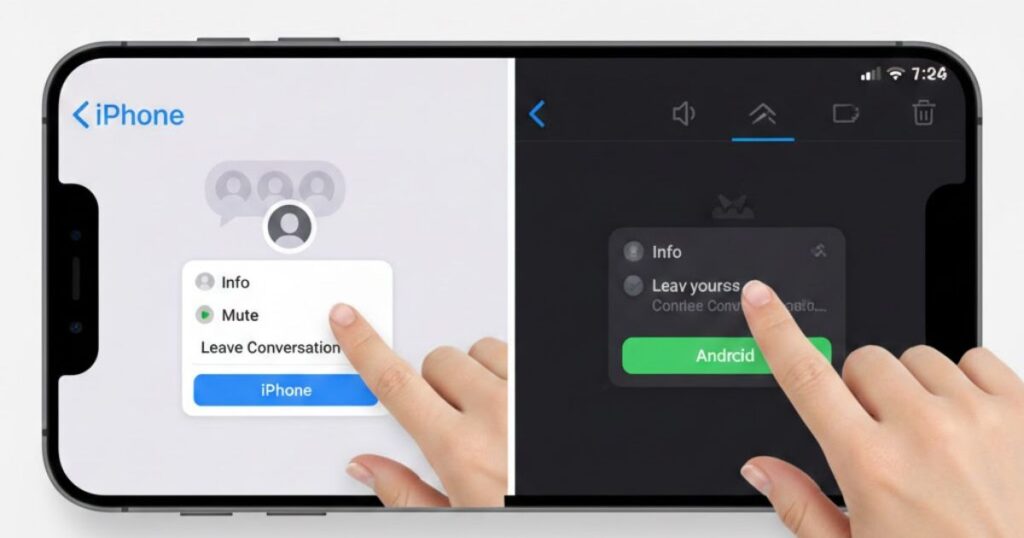
Group chats are a great way to stay connected with friends, family, or colleagues. Sometimes, however, they can become too busy or overwhelmed. This guide will show you how to leave a group chat on iPhone and manage notifications easily.
If you’re wondering how to leave a group chat iPhone or remove someone from a group, don’t worry. We will explain simple steps for iMessage, SMS/MMS chats, and third-party apps like WhatsApp, Messenger, and Telegram, so you can control your messaging experience.
For Android users, knowing how to leave a group chat on Android or mute notifications is just as important. With clear instructions, you can exit unwanted chats, remove participants where possible, and make your group messages more manageable and stress-free.
Understanding Group Chat Types

Group chats can be different depending on the platform and devices used. Knowing the type helps you manage group chats efficiently, leave or remove participants, and control notifications without confusion.
- iMessage Group Chats: Only for iPhone users with blue bubbles; allows leaving or removing participants easily.
- SMS/MMS Group Chats: Works across devices, but you cannot remove members; muting notifications is the main option.
- Third-Party Group Chats: Apps like WhatsApp, Messenger, and Telegram offer full control to exit groups or remove participants.
Understanding group chat types is important because not all chats allow leaving or removing members. For example, SMS/MMS group chats are limited by carriers, while iMessage and third-party apps give more freedom to manage conversations. This knowledge ensures smoother communication.
How to Leave or Remove Someone from an iMessage Group Chat (iPhone Only)

If you want to leave an iMessage group chat or remove someone, first open the Messages app and select the conversation. Then tap the group name or participant icons, scroll to participants, and choose “Leave this Conversation” or swipe to remove a participant. This works only when all users use iMessage.
Leaving an iMessage Group Chat:
- Open the Group Chat: Go to the Messages app and select the chat you want to leave. Then tap the group name or icons at the top.
- Scroll and Tap ‘Leave this Conversation’: This option appears only if all participants use iMessage.
- Confirm Your Choice: Tap “Leave this Conversation” to exit the group immediately.
- Check Group Settings: Ensure all users are on iMessage; otherwise, the option will be grayed out.
- Communicate Before Leaving: Let others know before leaving to avoid confusion.
- Manage Notifications: If leaving isn’t possible, toggle Hide Alerts to reduce interruptions.
Note: Leaving an iMessage group chat is simple when all participants use iMessage. By following these steps, you can exit unwanted chats or manage notifications effectively, keeping your messaging stress-free.
Removing Someone from an iMessage Group Chat:
- Open the Group Chat: Go to the Messages app and select the conversation. Then tap the group name or participant icons at the top.
- Access Participant List: Scroll down to see all members in the group and find the person you want to remove.
- Swipe to Remove: Swipe left on the participant’s name and tap “Remove” to take them out of the chat.
- Confirm Removal: Make sure to confirm the action; this works only if all members use iMessage.
- Check Group Rules: Only certain iMessage groups allow removing participants; verify the chat type first.
- Communicate if Needed: Let others know why you removed someone to keep the conversation smooth and clear.
How to Remove Yourself from SMS/MMS Group Chats

Unlike iMessage, SMS/MMS group chats do not allow you to leave or remove participants because your carrier controls them. However, you can manage notifications by muting alerts or hiding notifications, and deleting the chat from your device. This helps reduce distractions and keep your messages organized.
Muting Notifications in SMS/MMS Group Chats:
- Open the Group Chat: Go to the Messages app and select the SMS/MMS group chat you want to manage.
- Tap Group Name or Details: Access the chat settings by tapping the group name or participant icons at the top.
- Enable Hide Alerts: Toggle Hide Alerts or Mute Notifications to stop receiving alerts from the group.
- Manage Notification Settings: Adjust settings for vibration, sounds, or banners to reduce interruptions effectively.
- Delete the Chat if Needed: You can remove the chat from your device, but it does not remove you from the group.
- Stay Organized: Muting notifications helps keep your messages clutter-free while maintaining access to the conversation.
Muting SMS/MMS group chat notifications is a simple way to reduce distractions. By using Hide Alerts and managing settings, you stay in the group without constant interruptions, keeping your messaging organized and stress-free.
How to Remove Yourself or Others from a Group Chat on Android
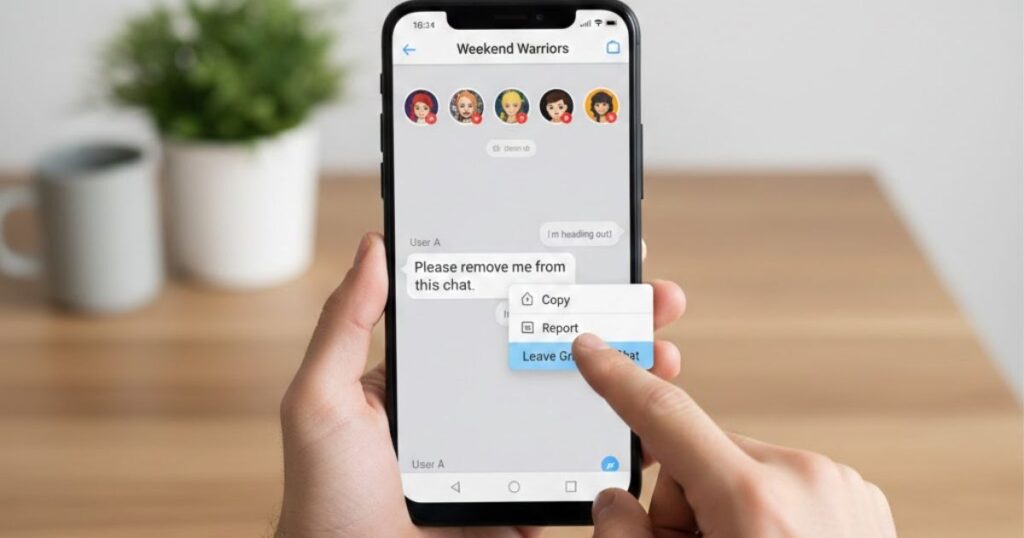
On Android, you can leave a group chat or manage participants depending on the chat type. For RCS or third-party apps, you can exit groups, remove members, or mute notifications easily to control your conversations.
Leaving a Group Chat on Android:
- Open the Group Chat: Go to the Messages app and select the group chat you want to leave.
- Ensure it is an RCS-enabled chat for full leaving options.
- Ensure it is an RCS-enabled chat for full leaving options.
- Tap the Menu Icon: Tap the three dots at the top right to access chat settings.
- This menu lets you see options like Leave Group or Mute Notifications.
- This menu lets you see options like Leave Group or Mute Notifications.
- Select ‘Leave Group’ or ‘Exit Group’: Choose this option to remove yourself from the conversation.
- Confirm the action to ensure you are no longer part of the group chat.
- Confirm the action to ensure you are no longer part of the group chat.
- Manage Notifications if Leaving Isn’t Possible: If the option is unavailable, toggle Mute Notifications or Turn Off Alerts.
- This reduces interruptions while keeping the conversation accessible on your device.
Muting Notifications in SMS/MMS Group Chats:
- Open the Group Chat: Go to the Messages app and select the SMS/MMS group chat you want to manage.
- Tap the group name or details to access notification settings.
- Tap the group name or details to access notification settings.
- Enable Hide Alerts: Turn on Hide Alerts or Mute Notifications to stop receiving notifications from the group.
- This helps reduce constant distractions from frequent messages.
- This helps reduce constant distractions from frequent messages.
- Adjust Notification Preferences: Modify sounds, vibration, or banners to suit your preference.
- This keeps your group chat notifications less intrusive while staying in the conversation.
- This keeps your group chat notifications less intrusive while staying in the conversation.
- Delete the Chat if Needed: Remove the conversation from your device to declutter your messages.
- Remember, deleting does not remove you from the SMS/MMS group chat for others.
Note: Muting SMS/MMS group chats is a simple way to manage interruptions. It lets you stay part of the conversation without constant alerts, keeping your messaging organized and stress-free.
Managing Group Chats on Third-Party Apps

For apps like WhatsApp, Messenger, and Telegram, you can leave group chats, remove participants, or mute notifications easily. Using admin controls helps manage groups smoothly and keeps conversations organized and stress-free.
WhatsApp:
Leaving a Group Chat:
- Open WhatsApp and select the group chat you want to leave, then tap the group name at the top.
- Scroll down and tap Exit Group to leave the conversation.
- Confirm your choice to remove yourself permanently from the chat.
Removing Participants:
- Open the group chat and tap the group name to see all participants.
- Only admins can select a participant and tap Remove from Group.
- Confirm the action to successfully remove the member from the chat.
Facebook Messenger:
Leaving a Group Chat:
- Open Facebook Messenger and select the group chat you want to leave, then tap the participant names at the top.
- Scroll down and tap Leave Group to exit the conversation.
- Confirm your choice to remove yourself permanently from the chat.
Removing Participants:
- Open the group chat and tap the group name to view all participants.
- Only admins can select a participant and tap Remove from Group.
- Confirm the action to successfully remove the member from the chat.
Telegram:
Leaving a Group Chat:
- Open Telegram and select the group chat you want to leave, then tap the three dots at the top.
- Tap Leave Group to exit the conversation quickly.
- Confirm your choice to remove yourself permanently from the chat.
Removing Participants:
- Open the group chat and tap the group name to see all members.
- Only admins can select a participant and tap Remove User.
- Confirm the action to successfully remove the member from the chat.
Tips for Managing Group Chats

- Use Admin Settings: Assign admin roles in third-party apps like WhatsApp, Messenger, or Telegram.
- This helps manage participants efficiently and keeps the chat organized.
- This helps manage participants efficiently and keeps the chat organized.
- Communicate Before Leaving: Let others know if you plan to leave a group chat or remove someone.
- This avoids confusion and maintains smooth conversations.
- This avoids confusion and maintains smooth conversations.
- Mute Instead of Leaving: If you cannot exit, mute notifications or hide alerts in SMS/MMS or app chats.
- This reduces distractions while staying part of the conversation.
Conclusion
Managing group chats can be easy when you know the right steps. Whether you want to leave a group chat on iPhone, remove participants on Android, or manage third-party apps like WhatsApp, Messenger, and Telegram, the process is simple. For SMS/MMS group chats, muting notifications or hiding alerts helps reduce distractions.
Using admin controls, communicating before leaving, and organizing notifications keeps conversations smooth and stress-free. By following these tips, you can stay in control of your messaging, enjoy meaningful chats, and avoid unnecessary interruptions while keeping your devices organized and manageable.
FAQS
How do I leave a group chat on my iPhone?
Open the Messages app, select the group, tap the group name, and choose Leave this Conversation. Works only if all participants use iMessage.
Can I remove someone from an iMessage group chat?
Yes, if the group has three or more participants and all use iMessage. Tap the group name, swipe the participant’s name, and select Remove.
How do I mute SMS/MMS group chat notifications?
Open the group chat, tap the group name or details, then enable Hide Alerts or Mute Notifications to stop constant interruptions.
How can I leave a group chat on Android?
Open the Messages app, select the group chat, tap the three dots menu, and choose Leave Group. Confirm to exit successfully.
Can admins remove participants in WhatsApp, Messenger, or Telegram?
Yes, only admins can remove members. Open the group, select the participant, and tap Remove from Group (or Remove User in Telegram).
Read More Articles: Msgsword