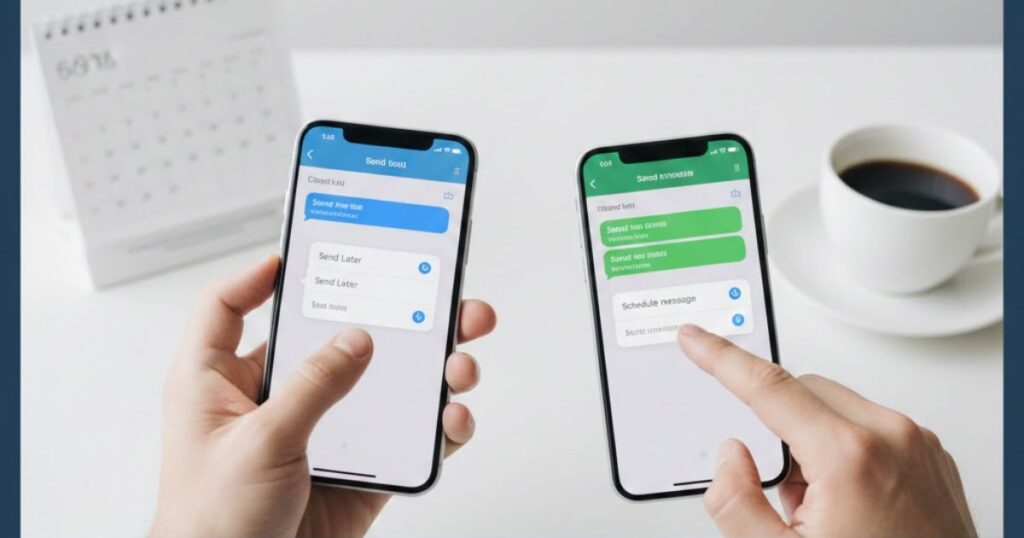
Scheduling a text message on your phone can save you time and help you stay organized. Whether you want to send a birthday wish, a reminder, or a business message, both iPhone and Android allow you to plan your texts ahead. You just need to know the right steps.
On iPhone, Android, or even using third-party apps, sending a text later is simple. You can set a specific time and date, and your message will be delivered automatically. This guide will show you how to schedule a text message on iPhone and Android in a few easy steps, so you never forget important messages again.
Can you schedule a text on iPhone or Android?
Yes, you can schedule a text on iPhone or Android. Both devices allow you to plan messages in advance, making it easy to stay organized. Using built-in apps or third-party messaging automation tools, you can send texts at the right time without forgetting.
On iPhone, features like the iMessage schedule or Shortcuts automation iPhone let you create one-time or recurring messages. You can also use the Reminders app to prepare messages and get notified when it’s time to send. These tools work smoothly and keep messages secure.
For Android users, apps like Samsung Messages, Google Messages, or third-party apps such as Textra SMS and Pulse SMS scheduler make sending delayed texts Android easy. You can select the date, time, and receiver, and the message will be sent automatically, even if your phone is off.
How to schedule a text on iPhone
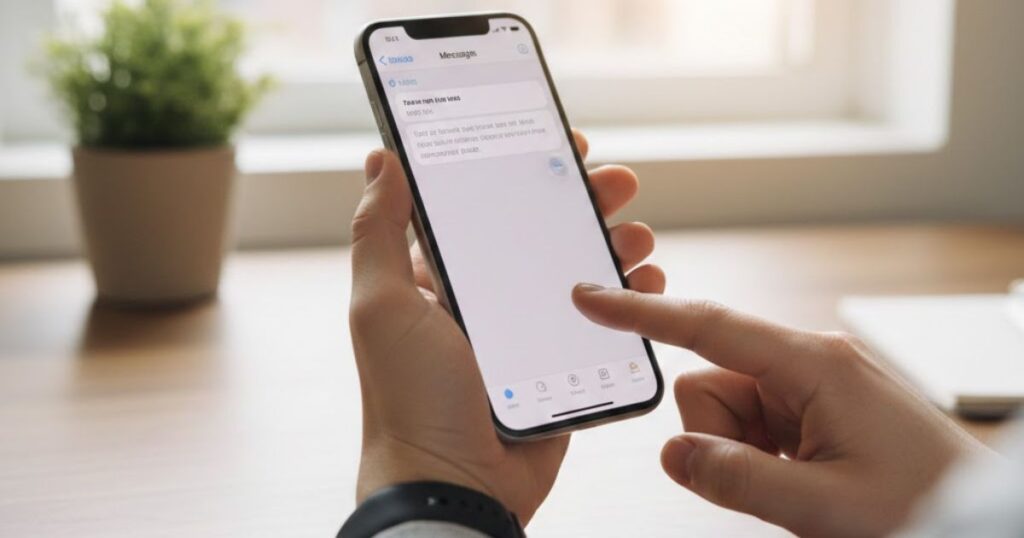
To schedule a text on iPhone, open iMessage or the Shortcuts app and set the date and time for your message. You can use iPhone text automation or third-party apps to plan one-time or come to go messages, ensuring your texts are sent on time without any effort.
Option 1: Use the Native Scheduler in iMessage
You can schedule a text iPhone easily using the iMessage native scheduler. This feature allows you to set a specific time and date for your message. It works offline, keeps messages secure, and ensures your texts are sent automatically without reminders.
Step 1: Open Messages and go to an existing conversation or start a new one.
Step 2: Tap the “+” icon next to the text field, then select Send Later.
Step 3: Tap the time field to open the scheduler and choose when to send your message.
Step 4: Type your message and tap the send arrow; it will look with a dashed border until sent.
A few important points to keep in mind when using iPhone’s built-in text scheduling feature:
- Works Offline: Messages sent even if your phone is turned off.
- Edit or Reschedule: Touch and hold scheduled messages to modify or cancel.
- Secure and Encrypted: Your messages are safely stored on Apple servers.
- Invisible to Recipient: The person receiving the message won’t know it was scheduled.
Option 2: Use a Shortcuts automation
Using a Shortcuts automation on iPhone allows you to schedule a text on iPhone at a set time or even set recurring messages. This method is free and set up into iOS 13 or later. It’s ideal for planning reminders, birthday wishes, or regular updates without forgetting.
The Shortcuts app iPhone gives you full control over your text automation. You can select the time, receiver, and message content, and even set it to repeat daily, weekly, or monthly. Using this method, your messages are sent automatically, making it a reliable tool for personal or business communication.
Step 1: Open the Shortcuts app. Tap the Automations tab, then Create Personal Automation. If you already have automations, tap the “+” in the top-right corner first.
Step 2: Choose Time of Day as the trigger and set the exact date and time you want your message to send.
Step 3: Tap Add Action, select Send Message, type your message, and choose the recipient.
Once your automation is set up, you can review it to ensure accuracy. iPhone text automation allows you to disable confirmation prompts, so messages can be sent without manually blessing them. This makes come to go or one-time messages simple and efficient.
Step 4: Review the automation details, including receiver, time, and message. Toggle Ask Before Running off if you want automatic sending. Tap Done to save.
Step 5: For one-time messages or limited recurring messages, set a reminder to delete the automation later. Open Shortcuts, swipe left on the automation, and tap Delete when done.
Step 6: Monitor your scheduled messages to ensure they are sent correctly. You can edit or adjust the automation anytime by tapping the automation in the Shortcuts app, making it flexible for your texting needs.
Option 3: Use a third-party app
If you prefer more features, you can schedule a text on iPhone using third-party apps like Scheduled or Text Delay. These apps let you plan messages in advance and even set come to go or one-time texts with ease.
Some apps send your message automatically, while others notify you to send it manually. Using iPhone text automation apps gives you extra control over timing, receiver, and message content, making it a convenient option for personal or business communication without relying solely on iMessage.
Option 4: Use the iPhone Reminders app
Using the iPhone Reminders app is a simple workaround to schedule a text on iPhone without downloading anything new. While it won’t send messages automatically, it lets you plan your texts and get timely notifications to send them manually.
Step 1: Open the Reminders app on your iPhone. Swipe down and type “Reminders” in the search bar if it isn’t visible on the home screen.
Step 2: Add a new list by tapping Add List in the lower-right corner. You can also add a reminder to an existing list by tapping + New Reminder.
Step 3: Enter the details for your reminder. Give it a clear title like “Text Mom” and choose a color if you want to organize your reminders related words.
Step 4: Set a date and time for the reminder. Tap the details icon (the “i” in a circle) and include the time you want to be notified.
Step 5: When the notification pops up, open your reminder. Copy the text from the Notes section and paste it into iMessage to send. This ensures your message goes out exactly when you planned.
Using iPhone messaging reminders is very helpful if you don’t need full automation. You can compose multiple messages ahead of time, stay organized, and still review or edit texts before sending. It’s a simple, reliable method for casual scheduling.
Step 6: Manage your reminders efficiently to avoid clutter and missed texts.
- Organize by list: Keep all scheduled texts in a single list for easy access.
- Set alerts: Ensure notifications are enabled for timely reminders.
- Use colors: Assign colors to different types of messages, like personal or work.
- Edit before sending: Review your text in Notes to avoid errors.
- Delete after sending: Remove completed reminders to keep your list clean.
How to schedule a text on Android
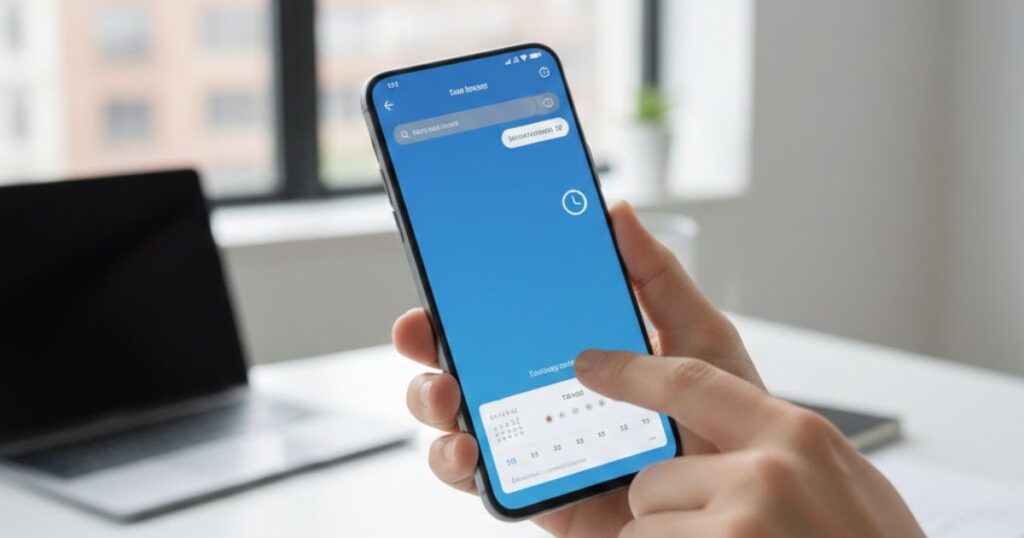
Scheduling a text on Android is simple and convenient. You can use your default Android messaging apps, like Samsung Messages or Google Messages, to plan messages ahead. This helps you stay organized, send reminders, or reach friends and family at the perfect time without forgetting.
For more control, you can also use third-party Android SMS apps like Textra SMS or Pulse SMS scheduler. These apps allow you to set the date, time, and receiver, making it easy to send delayed texts to Android. Automation saves time and ensures messages arrive exactly when needed.
Option 1: Use the Samsung Galaxy Messages app
If you have a Samsung Galaxy phone, you can easily schedule a text on Android using the set up-in Samsung Messages app. This lets you set the date and time for your messages, making texting convenient and reliable without extra apps.
Step 1: Open the Messages app and select an existing conversation or tap Compose to start a new one.
Step 2: Enter your message and choose the recipient for your scheduled text.
Step 3: Tap the + icon or the arrow on the left side, then select Schedule message.
Step 4: Pick the date and time you want your message to send, up to a year in advance, then tap Send to schedule it.
Option 2: Use the Messages by Google app
If you don’t have a Samsung device, you can schedule a text on Android using the Messages by Google app. This app is free, easy to use, and allows you to plan messages ahead so they send automatically at the right time.
The app works well on Google Pixel and other Android phones. You can select a recipient, type your message, and set a specific time and date. Using Android text automation ensures your messages are delivered reliably without forgetting important texts.
Step 1: Open the Messages by Google app and select an existing conversation or tap Start chat to begin a new one.
Step 2: Type your message and choose the recipient for the scheduled text.
Step 3: Tap and hold the Send arrow until the Schedule send menu appears. Choose from suggested send times or tap Pick date and time to select exactly when your message should send. Use the calendar to set the date, then tap Next, and select the exact hour and minute for delivery.
Step 4: Confirm the date and time in the preview window, then tap Save and finally Send to schedule your text successfully.
Option 3: Use your Google Calendar app
You can also schedule a text on Android using the Google Calendar app. This method works as a reminder to send your message and is helpful if you want to prepare texts ahead without relying on messaging apps.
This talk is perfect for one-time messages. You can add your text in the Notes section of an event and get notified at the right time. Using Android messaging reminders ensures you never forget important messages or deadlines.
Step 1: Open the Google Calendar app and tap + Create to start a new event.
Step 2: Enter a title for your event, like “Text Mom,” and choose the date and time for your reminder.
Step 3: Add your message in the Notes section of the event. Set a notification reminder so you receive care at the scheduled time. When the notification looks, you can copy the text from Notes and paste it into your messaging app to send manually. This helps you plan messages accurately without missing important times.
Step 4: Tips for using Google Calendar for text reminders:
- Enable notifications to get timely alerts.
- Use descriptive titles for each reminder.
- Set multiple reminders if needed.
- Copy text easily from the Notes section to your messaging app.
Option 4: Use a third-party app
You can schedule a text on Android using third-party apps like Textra SMS or Pulse SMS scheduler. These apps let you plan messages ahead, set dates and times, and automate texting easily.
Some apps send messages automatically, while others remind you to send them manually. Using Android text automation apps gives more control over timing, recipients, and content, making it a convenient option for personal or business messages.
When to schedule a text message to customers

Sending messages with automated texting tools saves time and can be very useful in these situations:
- Marketing Campaigns: Use automated business texting to inform customers about upcoming sales, promotions, or events. Scheduling messages in advance ensures timely delivery and increases engagement with your audience.
- Deadline Alerts: Send text reminders for registration deadlines, subscription repair, or form submissions. This helps customers take action on time and prevents missed good times.
- Appointment Reminders: Reduce no-shows by sending scheduled text messages as reminders for meetings, talk, or service date. Customers receive timely notifications, improving attendance and content.
- Billing Date Reminders: Notify customers about upcoming payments or due dates. Using business SMS automation ensures messages arrive on time and helps maintain consistent cash flow.
- Follow-Up with Prospects: Strengthen relationships with potential clients by sending scheduled follow-up texts after calls, meetings, or study. This keeps your brand top-of-mind and motivates engagement.
- Customer Feedback Requests: Ask for reviews or feedback after a pick up or service. Scheduling automated SMS allows you to request responses at the most convenient time for your customers, improving reply rates.
How to schedule a text message with Twilio
Using Twilio Message Scheduling makes it easy to send automated text messages to customers at the exact time you want. You can schedule SMS, MMS, or WhatsApp messages, which helps save time and improves communication efficiency.
With Twilio, you can manage multiple messages and recipients from a single platform. This business SMS automation allows you to plan campaigns, reminders, or updates ahead of time, ensuring your messages reach customers reliably without relying on your personal phone.
Getting started is simple. Sign up for a free Twilio account, set up your messaging service, and schedule your first text. Twilio SMS scheduling provides tools for both small businesses and organizations to maintain consistent customer engagement and improve response rates.
Conclusion
Scheduling text messages on iPhone and Android is an easy way to stay organized and communicate usefully. Whether you use built-in tools like iMessage scheduler, Shortcuts automation, Samsung Messages, or third-party apps, you can plan messages ahead and never forget important updates.
For businesses, tools like Twilio SMS scheduling streamline customer communication, reminders, and marketing campaigns. Using these methods ensures messages are sent on time, improves engagement, and saves effort. By choosing the right app or method for your device, you can send personal or professional messages confidently, efficiently, and reliably every time.
Text scheduling FAQs
Can you use a personal phone to schedule business texts?
Yes, you can use a personal phone for business texts, but it’s safer to use apps or services that share personal and business messaging for security.
Can you tell if a text was scheduled?
No, the receiver cannot see if a text was scheduled. Scheduled messages appear like normal texts and are delivered at the set time without any mark.
How do scheduled text messages work?
Scheduled texts are created in apps or messaging platforms, stored temporarily, and sent automatically at the chosen date and time, looking after timely delivery without manual action.
What kinds of texts can you schedule?
You can schedule reminders, marketing messages, follow-ups, appointment alerts, birthday greetings, or updates. Both SMS and messaging apps support one-time or recurring scheduled messages.
When is the best time to schedule a text?
The best time depends on your audience. Schedule messages when recipients are likely active, like mornings, lunch breaks, or early evenings, to maximize engagement.
Read More Articles: Msgsword