Printing your iPhone text messages (SMS, RCS, iMessage) and WhatsApp chats is easier than you think. Whether you want to keep cherished memories or need conversations for legal reasons, having a physical copy can be very helpful. You don’t need to rely on screenshots anymore.
With tools like iMazing, you can quickly export and print messages from your iPhone. It works with both your iPhone Messages app and WhatsApp chats, including photos, videos, and attachments. This makes it simple to organize and save important conversations.
Before you start, make sure your iPhone is connected to your Mac or PC via USB. iMazing guides you step by step, letting you select specific messages or entire chat threads. In no time, you can have your iPhone text messages printed neatly for reference or sharing.
Before you begin
Before you begin, make sure your iPhone is connected to your Mac or PC and that you have the latest iMazing version installed. This ensures smooth access to Messages app and WhatsApp chats. Also, check your USB cable and device passcode or Face ID for a seamless export.
Step-by-step instructions
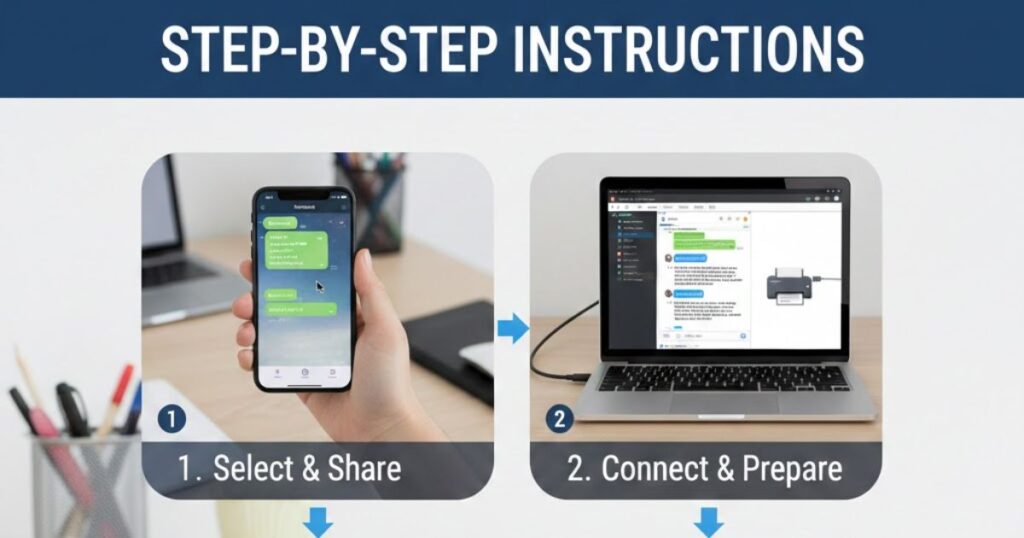
1. Launch iMazing on your computer
First, launch iMazing on your Mac or PC. This powerful tool lets you access your iPhone messages, WhatsApp chats, and attachments easily, preparing them for export or printing from your iPhone.
2. From iMazing’s Discover view, select Messages
Next, in iMazing’s Discover view, click on Messages under the Media and Communications section. This lets you access all your iPhone text messages, iMessage threads, and WhatsApp chats. From here, you can easily review conversations, select attachments, and get ready to print messages from your iPhone quickly.
💡 Tip:
After pairing your device, you can easily reach any data or feature within iMazing without extra steps.
- Click the Devices section in the sidebar to see all paired iPhones.
- Select your device to access its Messages app and WhatsApp chats.
- Use the Data or Tools options to explore and manage all available conversations efficiently.
3. Connect your device to your Mac or PC via USB
Connect your iPhone to your Mac or PC using a USB cable. Unlock the device with your passcode, Face ID, or Touch ID, and follow the pairing instructions. Once connected, iMazing can access all your Messages app conversations and WhatsApp chats, making it easy to print messages from iPhone.
💡 Tip: Always unlock your iPhone and select Trust This Computer to ensure iMazing can access all messages and WhatsApp chats smoothly.
4. Select your device
After connecting, click on your iPhone in iMazing to select it. This lets you access all available Messages app threads and WhatsApp chats. From here, you can choose the conversations you want to export, review attachments, and get ready to print text messages from your iPhone efficiently.
5. Select backup options
Choose your backup options in iMazing carefully. You can create a full restorable backup or select only messages and conversations. This helps save space while keeping all your iPhone text messages, iMessage threads, and WhatsApp chats ready for printing from your iPhone.
❗ Important: Always ensure your backup is complete before exporting messages.
💡 Tip: Full backups let you restore your device later if needed.
After selecting the backup type, click Start. Enter your iPhone passcode when feeding. iMazing will begin extracting all messages, attachments, and chat histories efficiently.
💡 Tips:
- Subsequent backups are incremental and much faster.
- Use the Refresh button to update an existing backup.
- Existing backups can be used to avoid repeating full backups.
Once the backup is complete, your messages and chats are fully accessible and ready for export or printing from the iPhone.
6. Choose messages to be exported and click Print
Select the conversations or messages you want to export in iMazing. You can choose entire threads from the Messages app or WhatsApp chats, including photos and attachments. Once selected, click Print to prepare your iPhone text messages for physical copies or legal documentation.
💡 Tips:
- Hold CTRL (Windows) or Command (Mac) and press A to select all messages.
- Use Shift to select multiple sequential messages quickly.
- Click individual messages while holding CTRL/Command to select non-contiguous items.
After selecting, iMazing will load your chosen messages, allowing you to review them and confirm all details before printing. Your chats are now ready for export or printing from iPhone.
7. Review printing options
In the Print Options window, you can customize all settings to control how your iPhone messages and WhatsApp chats will look on paper.
- Choose the printer you want to use for printing your iPhone messages or WhatsApp chats.
- Select the paper size and orientation to fit your messages neatly on each page.
- Adjust the scale to change font size and image size from 30% to 300%.
- Set margins to ensure text and attachments are properly aligned on the page.
- Add the chat session name in the header for easy identification of each conversation.
- Include page numbers in the footer to keep your printout organized.
- Add export metadata in the footer to include iPhone details, message dates, and database info for legal or reference purposes.
8. Click Print to confirm
At the last click the print to confirm it. Now your print is ready.
Going further
iCloud Messages
If you use iCloud Messages, iMazing can still access and export your iPhone text messages, iMessage threads, and WhatsApp chats. However, some older attachments may be stored only in the cloud. Don’t worry your text content remains intact, and you can easily print messages from your iPhone whenever needed.
Conclusion
Printing your iPhone text messages (SMS, RCS, iMessage) and WhatsApp chats is now simple and reliable with iMazing. By following the steps connecting your device, selecting conversations, choosing backup options, and reviewing print settings you can easily export and preserve important messages.
This process ensures that both personal memories and legal evidence are safely documented. Additionally, iCloud Messages support lets you access all conversations, even older ones stored in the cloud. Whether for personal reference or professional use, printing messages from your iPhone has never been easier, faster, or more organized.
Frequently asked questions
How can I print text messages from my iPhone?
You can print text messages from your iPhone using iMazing. Connect your device to a Mac or PC, select conversations, and choose the print option.
Can I print WhatsApp chats from my iPhone?
Yes, iMazing lets you export and print WhatsApp chats including photos, videos, and attachments directly from your iPhone to a printer or PDF.
Do I need a full backup to print messages?
No, you can choose either a full backup or only export messages and attachments. Both options allow you to print messages efficiently.
Will iCloud Messages affect printing?
Even if iCloud Messages is enabled, iMazing can access text content. Older attachments may be stored in the cloud but text remains printable.
How do I select multiple messages to print?
Use CTRL (Windows) or Command (Mac) to select multiple messages, Shift for sequential selection, or click individually to choose non-contiguous messages before printing.
Read More Articles: Msgsword