Have you ever opened your iPhone and seen the message “Syncing with iCloud Paused”? It can be confusing, especially if you rely on iCloud to back up your photos, messages, and apps. This message simply means that your iPhone has for now stopped syncing data with iCloud to prevent errors or problems.
There are several reasons why syncing with iCloud pauses. Your iPhone might have low battery, not enough iCloud storage, or a weak Wi-Fi connection. Sometimes, an outdated iOS version can also cause iCloud syncing to stop. The good news is that most of these issues are easy to fix, and your data is safe.
Understanding why syncing with iCloud is paused on your iPhone helps you fast take action. By checking your storage, network, battery, and software, you can resume syncing and make sure all your important files and apps stay updated in iCloud.
What does “Syncing with iCloud Paused” mean?
When you see “Syncing with iCloud Paused” on your iPhone, it means your iCloud syncing has for now stopped. Your device pauses uploads and downloads to protect storage, battery, and performance.
This pause can happen due to insufficient iCloud storage, Low Power Mode, or no stable Wi-Fi connection. Your data stays safe, and syncing resumes once your iPhone meets the right conditions.
Why is syncing with iCloud paused?
Your iCloud syncing paused because your iPhone detected an issue like low battery, no Wi-Fi, outdated iOS, or insufficient iCloud storage. It temporarily stops syncing to protect your data.
Insufficient iCloud storage
Insufficient iCloud Storage: When your iCloud storage is full or nearly full, your iPhone cannot upload new files. Pausing syncing prevents errors. Freeing up space or upgrading your plan solves the problem.
How to fix:
- Go to Settings > [Your Name] > iCloud > Storage to check available space.
- Delete unnecessary backups, old files, or apps to free storage.
- Remove duplicate photos using tools like CleanMyPhone’s declutter module.
- Upgrade your iCloud storage plan to add more capacity.
- Regularly monitor iCloud storage to prevent syncing pauses in the future.
Low Power Mode
When Low Power Mode is enabled, your iPhone conserves battery by pausing background tasks, including iCloud syncing. Disabling it ensures your iCloud uploads and downloads reopen smoothly.
How to Fix:
- Open Settings > Battery and toggle off Low Power Mode.
- Connect your iPhone to a charger to provide enough power for syncing.
- Wait a few minutes for iCloud syncing to automatically resume.
- Restart your iPhone if syncing does not start after disabling Low Power Mode.
No Wi-Fi connection
Your iCloud syncing pauses if your iPhone is not connected to a stable Wi-Fi network. Syncing requires a reliable connection, and using cellular data often prevents uploads or downloads.
How to Fix:
- Go to Settings > Wi-Fi and connect to a strong, stable network.
- Turn Wi-Fi off and on to refresh the connection.
- Restart your router if syncing still does not resume.
Outdated iOS
Running an outdated iOS can cause iCloud syncing paused issues because older software may not fully support the latest iCloud features. Updating ensures smooth syncing and better device performance.
How to Fix:
- Open Settings > General > Software Update and check for updates.
- Download and install the latest iOS version to improve iCloud syncing.
- Restart your iPhone after updating to ensure all iCloud services work properly.
How to fix “Syncing with iCloud Paused”
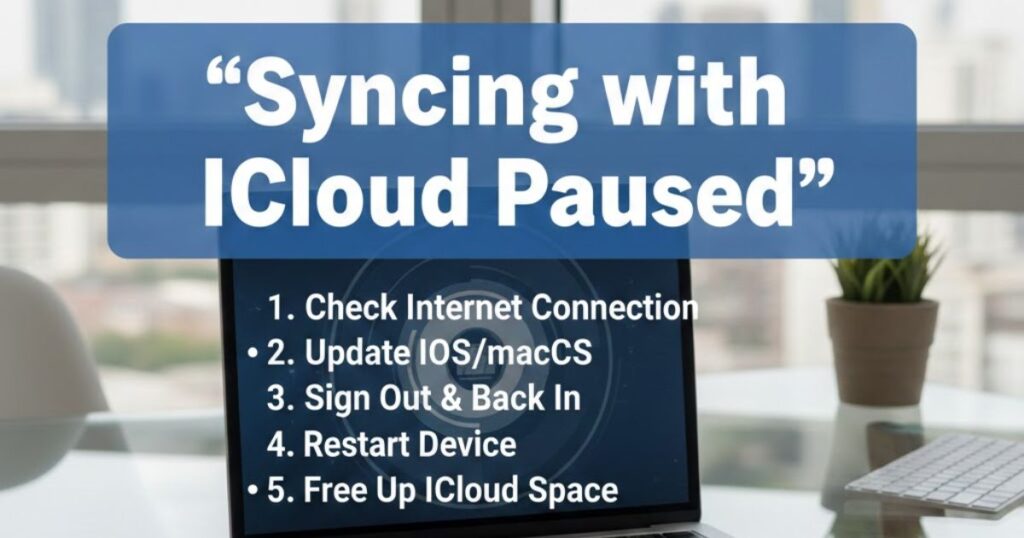
If your iCloud syncing paused, you can fix it by checking storage, disabling Low Power Mode, connecting to Wi-Fi, updating iOS, and restarting iCloud syncing. These steps resume smooth uploads and downloads.
Check Your iCloud Storage:
- Go to Settings > [Your Name] > iCloud > Storage to see available space.
- Delete unnecessary files, backups, or apps to free up storage.
- Use CleanMyPhone’s declutter module to remove duplicate photos and large files.
Disable Low Power Mode:
- Open Settings > Battery and toggle off Low Power Mode.
- Connect your iPhone to a charger to ensure enough power for syncing.
Connect to Wi-Fi:
- Go to Settings > Wi-Fi and connect to a stable network.
- Turn Wi-Fi off and on to refresh the connection.
Update iOS:
- Open Settings > General > Software Update and install the latest iOS version.
Restart iCloud Syncing:
- Go to Settings > [Your Name] > iCloud, toggle off affected apps, then toggle them back on.
- Wait a few minutes for iCloud syncing to resume automatically.
Conclusion
Seeing “Syncing with iCloud Paused” on your iPhone can feel frustrating, but it’s usually a temporary issue. Common causes include insufficient iCloud storage, Low Power Mode, no stable Wi-Fi connection, or an outdated iOS version. By checking your storage, disabling battery-saving features, connecting to a reliable network, updating your software, and restarting iCloud syncing, you can quickly resume seamless backups.
Tools like CleanMyPhone’s declutter module help free up space and keep your device optimized. Following these simple steps ensures your iPhone stays synced, your data stays safe, and your iCloud experience remains smooth and reliable.
FAQ about iCloud syncing
Why does it say syncing with iCloud paused?
Your iPhone shows “syncing with iCloud paused” when storage is low, battery is limited, Wi-Fi is unstable, or iOS is outdated. Resolving these issues resumes syncing automatically.
How to resume syncing with iCloud?
Check iCloud storage, disable Low Power Mode, connect to stable Wi-Fi, update iOS, and restart iCloud syncing. These steps resume smooth uploads and downloads.
What happens when iCloud syncing is paused?
When iCloud syncing pauses, your iPhone temporarily stops uploading or downloading files. Your data stays safe and automatically syncs once conditions improve.
Can I sync iCloud on cellular data?
iCloud generally requires Wi-Fi to sync. Using cellular data may pause syncing. Connect to a stable Wi-Fi network for smooth uploads and downloads.
Does restarting the iPhone fix iCloud syncing paused?
Yes, restarting your iPhone can refresh system processes and help iCloud syncing pause restart, especially after fixing storage, Wi-Fi, or Low Power Mode issues.
Read More Articles: Msgsword