Introduction
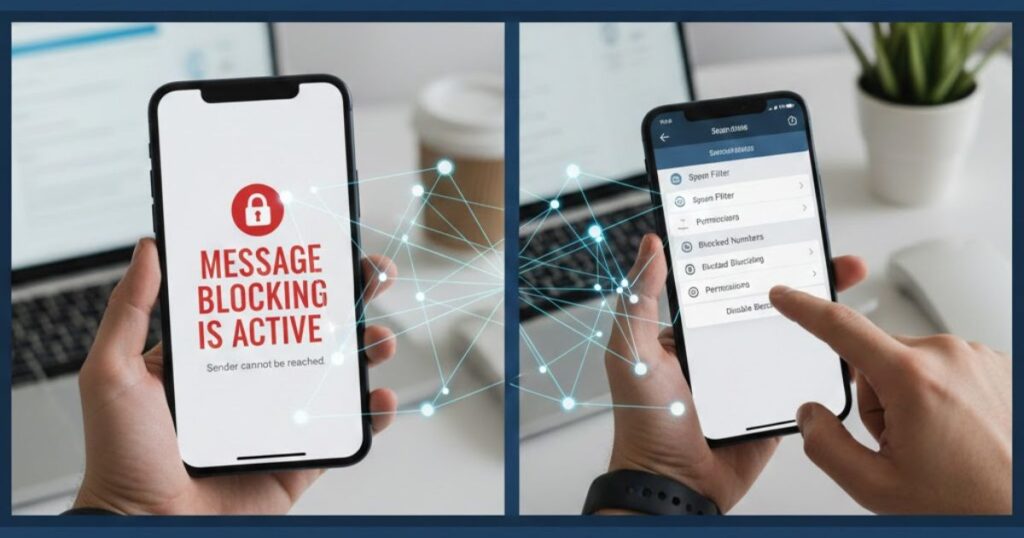
Sending a message and seeing “Message blocking is active” can be confusing. This error means your message cannot be delivered. It can happen on Android or iPhone due to blocked numbers, account issues, or network problems.
Many people face this problem when their mobile plan doesn’t support SMS or if their carrier for now blocks messages. Sometimes the issue is with device settings, weak network coverage, or outdated software. Understanding why it happens helps in fixing it quickly and helpful.
In this guide, we will explain the meaning of message blocking is active, common reasons it occurs, and step-by-step solutions. By following these tips, you can send messages smoothly again without errors or delays.
Key Takeaways
- “Message blocking is active” happens when your SMS messages cannot be sent due to blocked numbers, carrier restrictions, or network issues.
- Check your mobile plan and account status because missing payments or limited plans can trigger message delivery errors.
- Device settings, like APN configurations or Wi-Fi calling, can affect messaging. Adjusting them often resolves the problem quickly.
- If issues continue, contact your mobile carrier to check for service outages, SMSC number problems, or account-related restrictions.
What Does “Message Blocking Is Active” Mean?

The error “message blocking is active” means your SMS messages cannot be delivered. This usually happens when your mobile carrier or device blocks texts due to account issues, blocked numbers, or network problems, preventing messages from reaching the recipient.
On iPhone or Android, this issue can also occur if your APN settings, Wi-Fi calling, or messaging plan are not configured correctly. Understanding the message blocking is active meaning helps you identify the problem and take steps to fix message delivery errors quickly.
Common Reasons for the “Message Blocking is Active” Error
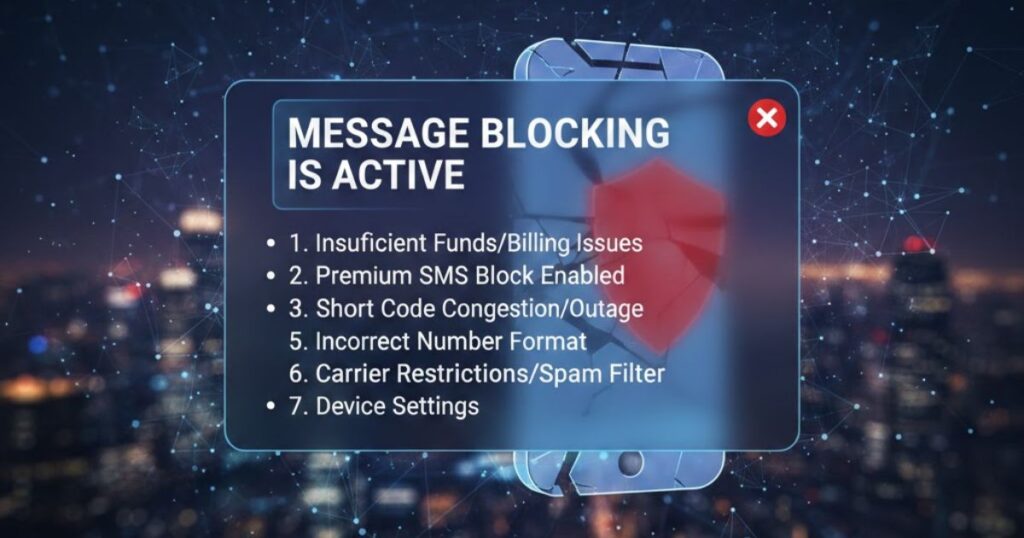
The “message blocking is active” error often occurs due to blocked numbers, carrier cutback, inactive messaging plans, short code issues, or network and device settings, preventing your SMS messages from being delivered.
Blocked Numbers
If the recipient’s number or your contact is blocked, your SMS messages will fail to send, showing “message blocking is active”. Regularly checking and managing your blocked numbers list helps prevent unnecessary message delivery errors.
Carrier Restrictions
Sometimes, your mobile carrier may block messages if your account has unpaid bills, is flagged for spamming, or faces other cuts. This can trigger “message blocking is active” and prevent your SMS messages from reaching recipients.
Messaging Not Included in Your Plan
If your mobile plan does not include SMS messaging, trying to send texts may show “message blocking is active”. Many budget or data-only plans lack this feature, so reviewing your plan details ensures your messages are delivered without carrier-related cuts.
Short Code Issues
Sometimes, short codes used for promotional messages or two-factor authentication may not work, causing “message blocking is active” errors. Carriers like T-Mobile often control these numbers. Checking your network settings and contacting your mobile carrier can help ensure SMS messages from short codes are delivered properly.
Network or Device Settings
Incorrect network or device settings can trigger “message blocking is active” errors. Issues with APN configurations, outdated software, or misconfigured Wi-Fi calling often block SMS messages. Regularly updating your device settings ensures smooth message delivery and prevents unnecessary carrier or network-related restrictions.
Service Outages
Temporary service outages or network disruptions from your mobile carrier can cause “message blocking is active” errors. During maintenance or technical issues, your SMS messages may fail to be sent. Checking for carrier reports or contacting support helps restore message delivery fast and reliably.
How to Fix “Message Blocking is Active” on Android and iPhone
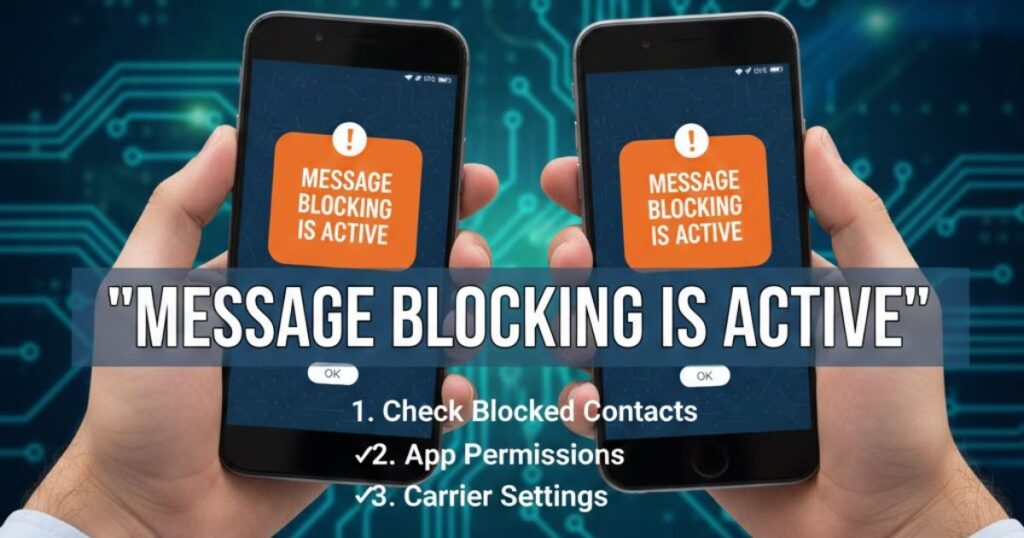
To fix “message blocking is active” on Android or iPhone, check your network connection, review blocked numbers, adjust APN settings, disable Wi-Fi calling, and ensure your mobile plan is active to restore smooth SMS message delivery.
1. Check Your Network Connection
A poor or inconsistent network signal can stop your texts from going through. Follow these steps to fix connectivity and ensure your SMS messages are delivered.
- Step 1: Restart your phone or turn on airplane mode for a few seconds to reset your network connection.
- Step 2: Move to an area with better signal strength to improve SMS message delivery.
- Step 3: If the issue continues, contact your mobile carrier to check for network outages or service restrictions.
2. Review Your Blocked Numbers List
At times, having numbers on your block list may stop messages from being sent. Here’s how to review and adjust your blocked contacts for smooth messaging.
On Android:
- Step 1: Open the Phone app and tap the three dots for Settings.
- Step 2: Select Blocked numbers to view and manage your blocked contacts. Unblock any numbers needed to restore SMS message delivery.
On iPhone:
- Step 1: Go to Settings > Messages > Blocked Contacts.
- Step 2: Swipe left on any contact to unblock and ensure your messages can be sent without errors.
3. Disable Wi-Fi Calling
Using Wi-Fi calling can from time to time disrupt message delivery. Turning this feature off can help your SMS messages reach recipients without problems.
On Android:
- Step 1: Open Settings > Network & Internet > SIM > Wi-Fi Calling.
- Step 2: Turn off Wi-Fi Calling to ensure your SMS messages are sent through the mobile network.
On iPhone:
- Step 1: Go to Settings > Phone > Wi-Fi Calling.
- Step 2: Disable Wi-Fi Calling to prevent interference and restore smooth message delivery.
4. Confirm Your Account is Active
Sometimes SMS messages fail because your mobile account is inactive. Ensuring your account is active and in good standing helps prevent message blocking and active errors and allows smooth message delivery.Check your account status through your carrier’s app or website:
- Step 1: Log in to your mobile carrier’s app or website.
- Step 2: Check for payment issues or overdue bills.
- Step 3: Review your plan details to confirm messaging services are included.
- Step 4: If the account is inactive, contact customer support to restore SMS message delivery.
5. Test Sending a Message to a Different Contact
To check if the issue is contact-specific, send an SMS message to a different number. This helps identify blocked numbers or device issues that give rise to message blocking active errors.
6. Test with a Different SIM Card
Try inserting your SIM card into another device to see if SMS messages send successfully. This helps form if the problem is with your device or mobile carrier, resolving message blocking is active issues efficiently.
7. Enable “Send as SMS” on iPhone
Enabling Send as SMS on iPhone ensures your messages send as regular SMS when iMessage is unavailable. Here’s how to enable it:
- Step 1: Go to Settings > Messages.
- Step 2: Turn on Send as SMS to restore smooth message delivery when iMessage fails.
8. Restart Your Phone
Restarting your phone can fix temporary glitches. This simple step often resolves message blocking and active errors and restores smooth SMS message delivery quickly.
9. Clear Cache for Messages App (Android)
Removing the cache can solve temporary issues with your Messages app. Follow these steps to refresh the app for better SMS message delivery.
- Step 1: Open Settings > Apps > Messages, then tap Storage & Cache.
- Step 2: Select Clear Cache to remove temporary data and fix message blocking is active issues without deleting your actual SMS messages.
This process clears stored temporary data in the Messages app without deleting your actual text messages.
10. Reset Your APN Settings
Resetting APN settings can fix network and messaging issues, helping resolve message blocking is active errors and restore smooth SMS message delivery.
On Android:
- Step 1: Go to Settings > Network & Internet > APN.
- Step 2: Tap the three dots and select Reset to Default.
- Step 3: Restart your device to apply the default APN settings for proper SMS message delivery.
On iPhone:
- Step 1: Open Settings > Cellular > Cellular Data Network.
- Step 2: Tap Reset to restore default APN settings.
- Step 3: Restart your iPhone to ensure SMS messages are sent correctly.
Tap Mobile Networks (if buried in More Settings menu)
- Step 1: Open Settings > Mobile Networks or More Settings on your device.
- Step 2: Select Access Point Names (APN) to view network configurations.
- Step 3: Tap Reset to Default to restore correct network and messaging settings for smooth SMS message delivery.
11. Contact Your Mobile Carrier
If your SMS messages still fail after troubleshooting, contacting your mobile carrier is essential. They can check for account restrictions, network outages, or service disruptions that cause message blocking and active errors. Providing your account details helps them identify the problem quickly and restore smooth message delivery.
Carrier support can also verify your plan details, confirm your SMSC number, and ensure your device settings are correct. By speaking with customer service, you can resolve blocked messages, fix network-related issues, and prevent future SMS message delivery errors, keeping your texting reliable on Android or iPhone.
12. Ensure Your SMSC Number is Correct (Android)
The SMSC number (Short Message Service Center) is crucial for routing SMS messages to the correct receiver. If it’s incorrect, you may see “message blocking is active” errors. Ensuring your SMSC settings are correct helps maintain smooth message delivery on Android devices.
Some carriers, like T-Mobile, Mint, Metro, or Boost, have specific SMSC numbers. Checking and updating this number can resolve issues caused by misconfigured settings or network changes. This step ensures that your SMS messages reach recipients without delays or errors.
Here’s how you can check and update your SMSC number on Android:
- Open your text messaging app and tap the menu icon (three vertical dots).
- Go to Settings > More Settings > Text Messages.
- Locate the Message Center or SMSC number field.
- Compare the number with your carrier’s correct SMSC number (for T-Mobile: +12063130004).
- If incorrect, enter the correct number and save to restore proper SMS message delivery.
How to Prevent “Message Blocking is Active” in the Future
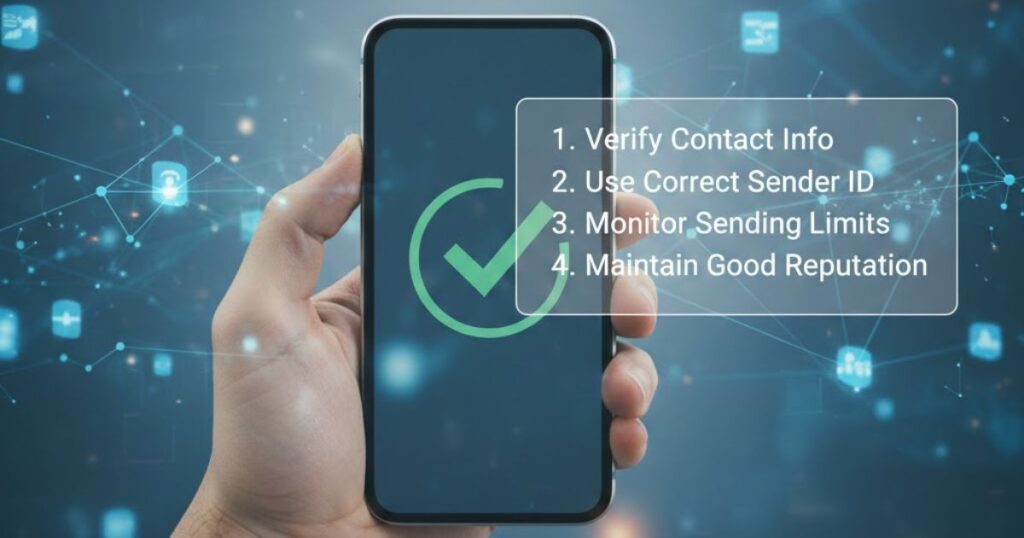
To prevent message blocking is active errors, regularly review your blocked numbers list, keep your mobile account in good standing, update device software and APN settings, and choose a reliable mobile carrier. These steps ensure smooth SMS message delivery and avoid future messaging issues on Android or iPhone.
1. Regularly Review and Manage Your Blocked Numbers List
Regularly checking and managing your blocked numbers list helps prevent message blocking from active errors. Removing unnecessary blocks ensures your SMS messages reach the intended one, avoids delivery failures, and keeps your messaging experience smooth on both Android and iPhone devices.
2. Keep Your Mobile Plan and Account in Good Standing
Paying bills on time and keeping your mobile account active prevents message blocking from active errors. Ensuring your plan includes SMS messaging allows smooth message delivery and avoids carrier restrictions. Regularly reviewing your account helps maintain reliable messaging services on both Android and iPhone devices.
3. Monitor Your Network and Device Settings
Regularly checking your network connection and device settings helps prevent message blocking from active errors. Updating APN configurations, disabling Wi-Fi calling if needed, and keeping software up-to-date ensures smooth SMS message delivery and avoids interruptions on both Android and iPhone devices.
4. Choose a Reliable Mobile Carrier with Clear Communication Policies
Selecting a reliable mobile carrier with transparent policies prevents message blocking from active errors. Carriers with good customer support quickly resolve SMS message delivery issues, network outages, or account restrictions, ensuring non stop messaging services on both Android and iPhone devices.
5. Set Up Two-Factor Authentication and Strong Security Practices
Activating two-factor authentication (2FA) and using strong security measures prevents wary activity that may trigger message blocking from active errors. Regularly updating passwords, avoiding unknown links, and monitoring your mobile account helps maintain smooth SMS message delivery on both Android and iPhone devices.
Pro Tip: Regularly update your device software and APN settings to prevent SMS message delivery issues and ensure consistent messaging performance.
Conclusion
The “message blocking is active” error can be frustrating, but understanding its causes helps you fix it quickly. Issues like blocked numbers, carrier restrictions, incorrect APN settings, or network problems often prevent SMS messages from being delivered. By following steps such as checking network connections, reviewing blocked contacts, updating device settings, and contacting your mobile carrier, you can restore smooth message delivery.
Additionally, preventive measures like keeping your account active, monitoring network settings, and using strong security practices ensure that SMS messages are sent reliably on both Android and iPhone devices.
FAQs
What does it mean when you text someone and it says “Message Blocking is Active”?
It means your SMS message cannot be delivered due to blocked numbers, carrier cut, or issues with your account or device settings.
What does the message say when you are blocked?
When someone blocks you, your SMS messages may fail to send, often showing errors like “message blocking is active”, preventing delivery to that contact.
What does Message Blocking mean?
“Message blocking is active” means your SMS messages cannot be sent due to blocked numbers, carrier cut, or issues with network and device settings.
What does Message Blocking Active mean on iPhone?
On iPhone, this error occurs when iMessage or SMS fails due to blocked contacts, inactive mobile accounts, or misconfigured APN and device settings.
What does Message Blocking Active mean on Android?
On Android, it indicates your SMS messages are blocked due to carrier restrictions, incorrect SMSC number, or network and device configuration issues.
Read More Articles: Msgsword